---
title: Using Membership in Front Office
description: How to use the using membership in front office feature in Impos Front Office. Step-by-step instructions for POS operators.
---
[Skip to content](https://knowledge.impos.com.au/hc/en-us/articles/360001621376-using-membership-in-front-office#main-content)
English - Australia
Show submenu for translations
[More support](https://knowledge.impos.com.au/kb-tickets/new?hsLang=en-au)
[](https://impos.com.au)
Open main navigation
Close main navigation
- English - Australia
Show submenu for translations
- [More support](https://knowledge.impos.com.au/kb-tickets/new)
- [visit impos.com.au](https://impos.com.au/)
[visit impos.com.au](https://impos.com.au/)
How can we help you?
- There are no suggestions because the search field is empty.
1. [Impos Knowledge Base](https://knowledge.impos.com.au/?hsLang=en-au)
2. [Impos Front Office](https://knowledge.impos.com.au/impos-front-office?hsLang=en-au)
3. [More Functions](https://knowledge.impos.com.au/impos-front-office?hsLang=en-au#more-functions)
27 August 2026
# Using Membership in Front Office
## This article will show you how to use the Membership functions in Front Office to create a new membership, top up member balances, and use Member Payment as tender for a transaction.
This article will show you how to use the Membership functions in Front Office to create a new membership, top up member balances, and use Member Payment as tender for a transaction.
**Creating a Membership:**
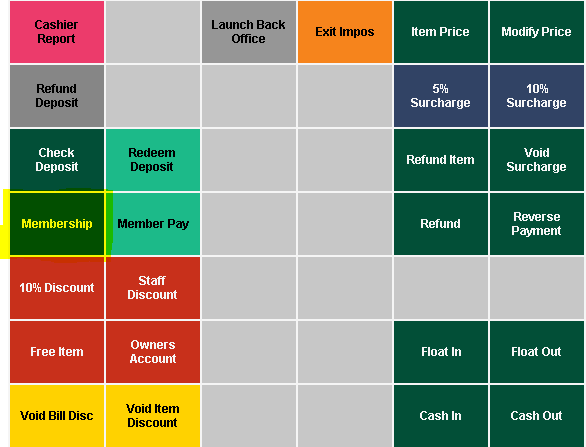
Select the Membership Button
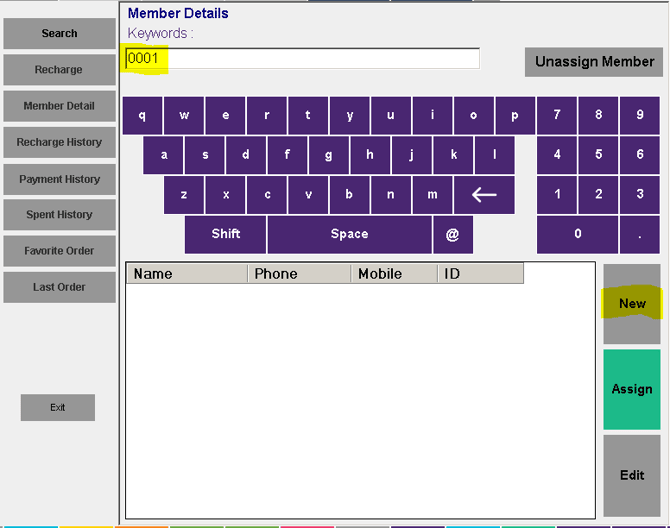
In the keywords field, enter the membership/card number, and then select 'New'
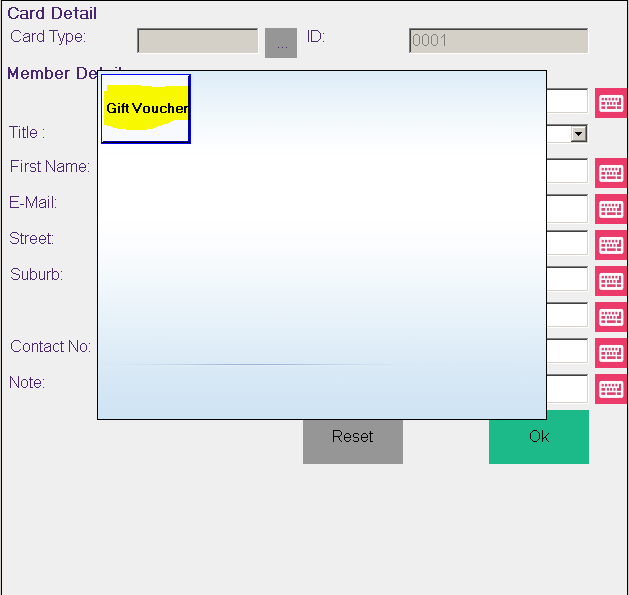
Select the Membership type that you're creating (in this instance, we're creating a Gift Voucher membership type):
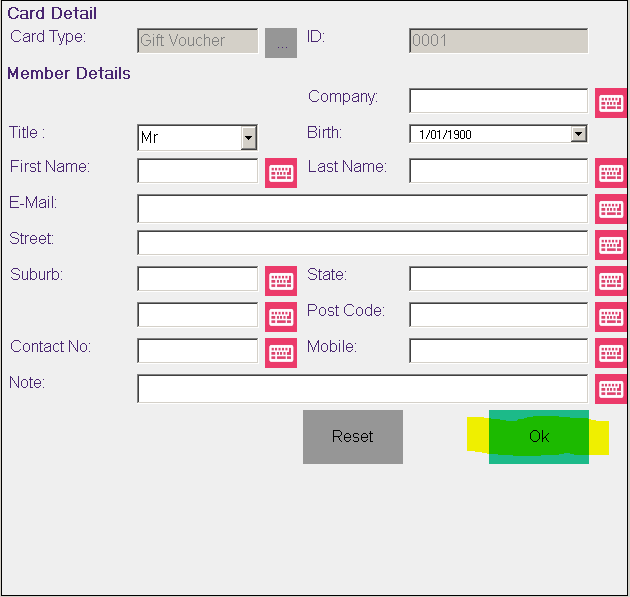
Enter any details you want to record for the customer in their membership/voucher and/or hit Ok
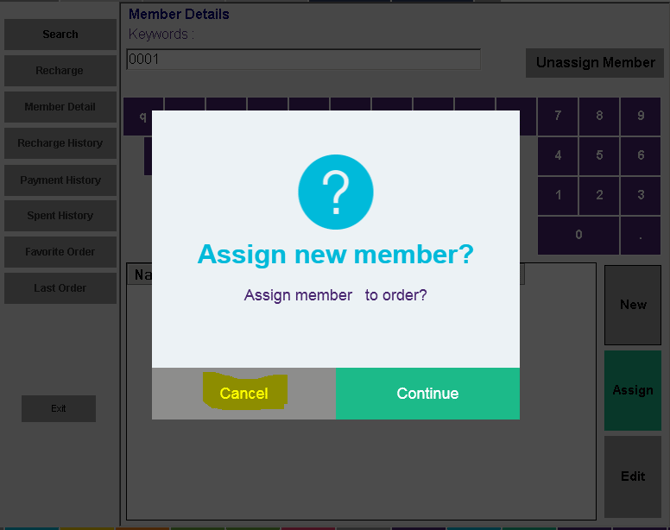
The system will ask you whether you would like to assign the member to the current order. For Memberships where no balance is added, and if you would like to use the membership/voucher straight away, select "continue". To add a balance to the Membership or Gift Voucher, we need to do that first, select "cancel".
**Adding a balance:**
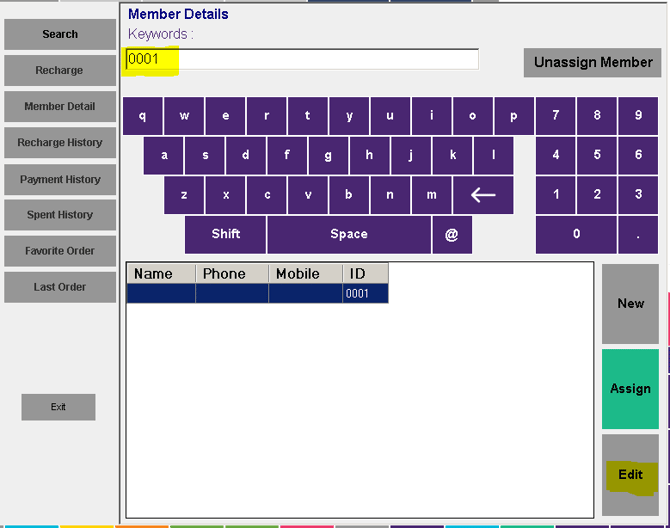
Re-enter the card number, highlight the card, and hit edit (Follow this and the next step to check balances on already created cards, by selecting the Member Detail tab)
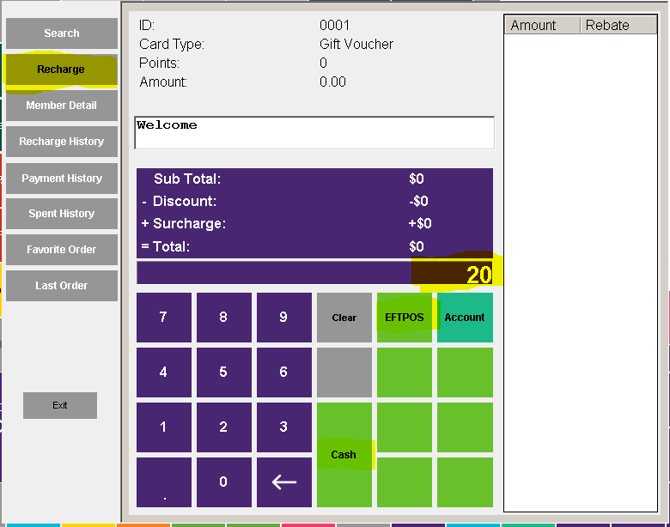
Select Recharge on the left hand side, enter the amount to put on the card, and then how they are paying for it.
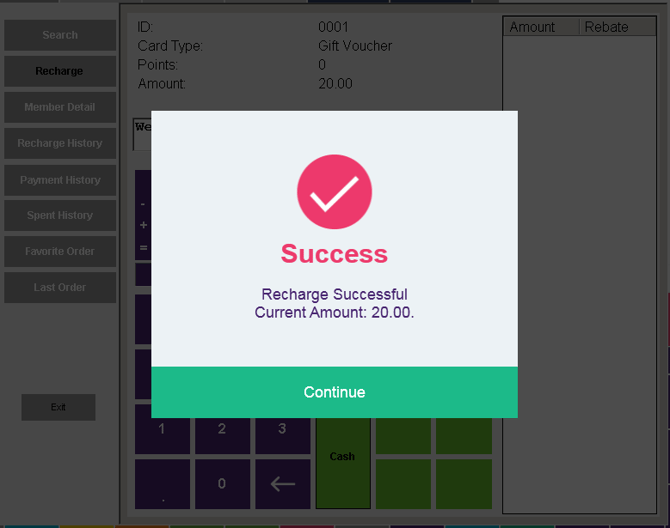
You have now successfully updated the balance on the card.
**How to use Member Pay to pay for a sale:**
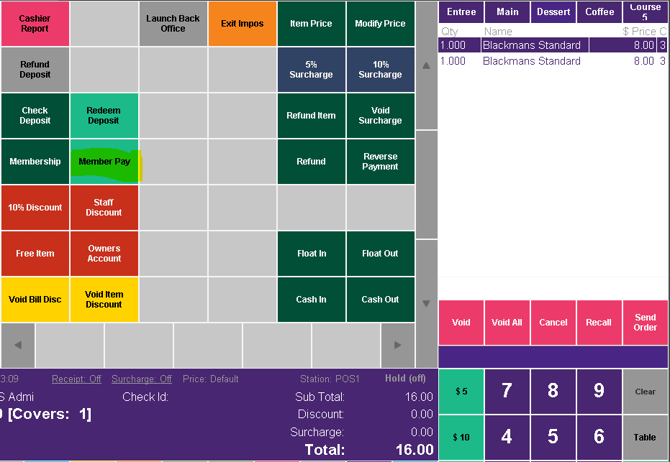
After entering the order, or when the customer would like to make a payment, select the Member Pay option
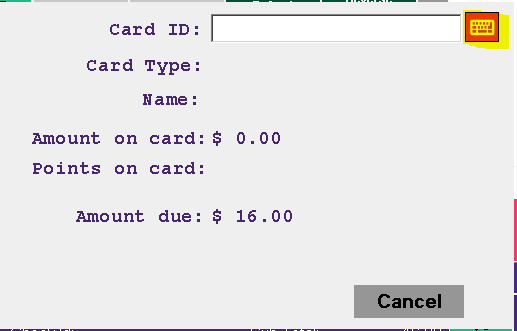
When the Membership window pops up, select the pink keyboard in the upper right-hand corner
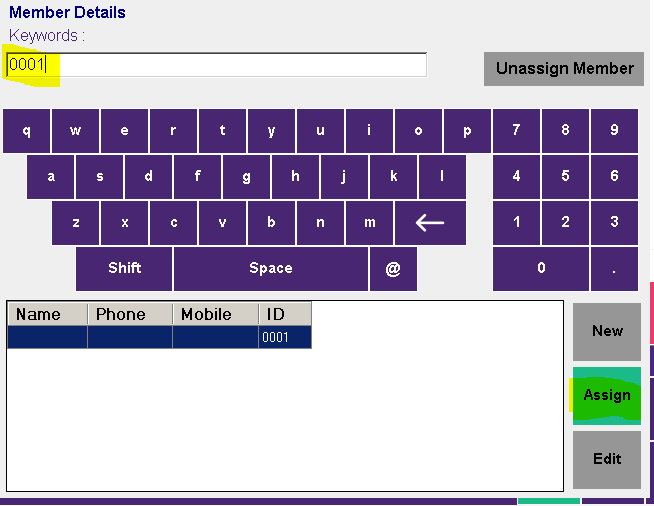
Enter the card number if known, (or use search terms to find the membership/voucher you would like to use) highlight it, and click assign
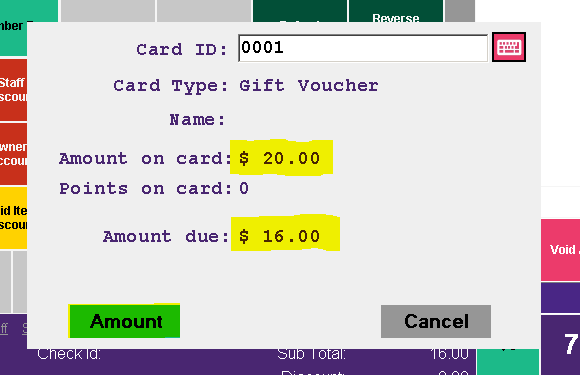
Select the "amount" button to pay and you're done!
- [How to Connect to your Venue Remotely](https://knowledge.impos.com.au/how-to-connect-to-your-venue-remotely?hsLang=en-au#main-content)
- [How to Connect to your Venue Remotely](https://knowledge.impos.com.au/how-to-connect-to-your-venue-remotely?hsLang=en-au#how-to-connect-to-your-venue-remotely)
- [Impos Back Office and Stock](https://knowledge.impos.com.au/impos-back-office-and-stock?hsLang=en-au#main-content)
- [Stock](https://knowledge.impos.com.au/impos-back-office-and-stock?hsLang=en-au#stock)
- [Back Office](https://knowledge.impos.com.au/impos-back-office-and-stock?hsLang=en-au#back-office)
- [Impos Front Office](https://knowledge.impos.com.au/impos-front-office?hsLang=en-au#main-content)
- [Cashier Reports](https://knowledge.impos.com.au/impos-front-office?hsLang=en-au#cashier-reports)
- [Getting Started with Impos Front Office](https://knowledge.impos.com.au/impos-front-office?hsLang=en-au#getting-started-with-impos-front-office)
- [Order Information](https://knowledge.impos.com.au/impos-front-office?hsLang=en-au#order-information)
- [Table Service](https://knowledge.impos.com.au/impos-front-office?hsLang=en-au#table-service)
- [Storing Order information in Front Office](https://knowledge.impos.com.au/impos-front-office?hsLang=en-au#storing-order-information-in-front-office)
- [Taking Payment](https://knowledge.impos.com.au/impos-front-office?hsLang=en-au#taking-payment)
- [Web Reports](https://knowledge.impos.com.au/impos-front-office?hsLang=en-au#web-reports)
- [More Functions](https://knowledge.impos.com.au/impos-front-office?hsLang=en-au#more-functions)
- [Impos Analytics](https://knowledge.impos.com.au/impos-analytics?hsLang=en-au#main-content)
- [Impos Analytics](https://knowledge.impos.com.au/impos-analytics?hsLang=en-au#impos-analytics)
- [Integrations](https://knowledge.impos.com.au/integrations?hsLang=en-au#main-content)
- [Doshii](https://knowledge.impos.com.au/integrations?hsLang=en-au#doshii)
- [Kitchen & Inventory Management](https://knowledge.impos.com.au/integrations?hsLang=en-au#kitchen-inventory-management)
- [Reservations & Room Charge](https://knowledge.impos.com.au/integrations?hsLang=en-au#reservations-room-charge)
- [Deputy Rostering](https://knowledge.impos.com.au/integrations?hsLang=en-au#deputy-rostering)
- [Promotions & Membership](https://knowledge.impos.com.au/integrations?hsLang=en-au#promotions-membership)
- [Bump Screens](https://knowledge.impos.com.au/integrations?hsLang=en-au#bump-screens)
- [Accounting](https://knowledge.impos.com.au/integrations?hsLang=en-au#accounting)
- [EFTPOS](https://knowledge.impos.com.au/integrations?hsLang=en-au#eftpos)
- [Cinch](https://knowledge.impos.com.au/cinch?hsLang=en-au#main-content)
- [Cinch Web Publishing](https://knowledge.impos.com.au/cinch?hsLang=en-au#cinch-web-publishing)
- [Cinch Basics](https://knowledge.impos.com.au/cinch?hsLang=en-au#cinch-basics)
- [Kiosk](https://knowledge.impos.com.au/kiosk?hsLang=en-au#main-content)
- [Setting Up Kiosk](https://knowledge.impos.com.au/kiosk?hsLang=en-au#setting-up-kiosk)
- [Latest Updates](https://knowledge.impos.com.au/latest-updates?hsLang=en-au#main-content)
- [Release Notes](https://knowledge.impos.com.au/latest-updates?hsLang=en-au#release-notes)
- [Policy Updates](https://knowledge.impos.com.au/latest-updates?hsLang=en-au#policy-updates)
- [FAQs](https://knowledge.impos.com.au/faqs?hsLang=en-au#main-content)
- [FAQs - Front Office](https://knowledge.impos.com.au/faqs?hsLang=en-au#faqs-front-office)
- [FAQs - Back Office](https://knowledge.impos.com.au/faqs?hsLang=en-au#faqs-back-office)
- [FAQs - Hardware eg Printers, Terminals, Tablets, Networking](https://knowledge.impos.com.au/faqs?hsLang=en-au#faqs-hardware-eg-printers-terminals-tablets-networking)
- [FAQs - Onboarding, Installation and Training](https://knowledge.impos.com.au/faqs?hsLang=en-au#faqs-onboarding-installation-and-training)
- [FAQs - Stock](https://knowledge.impos.com.au/faqs?hsLang=en-au#faqs-stock)
- [FAQs - Schools](https://knowledge.impos.com.au/faqs?hsLang=en-au#faqs-schools)
- [Troubleshooting](https://knowledge.impos.com.au/troubleshooting?hsLang=en-au)
[](https://impos.com.au/)
[mailto:email@email.com](mailto:email@email.com)
Copyright © 2026, Impos