---
title: How Do I Add Pictures To My Customer Display Screen?
description: How Do I Add Pictures To My Customer Display Screen? Find the answer and step-by-step guidance in this Impos POS knowledge base article.
---
[Skip to content](https://knowledge.impos.com.au/hc/en-us/articles/360000932616-how-do-i-add-pictures-to-my-customer-display-screen#main-content)
English - Australia
Show submenu for translations
[More support](https://knowledge.impos.com.au/kb-tickets/new?hsLang=en-au)
[](https://impos.com.au)
Open main navigation
Close main navigation
- English - Australia
Show submenu for translations
- [More support](https://knowledge.impos.com.au/kb-tickets/new)
- [visit impos.com.au](https://impos.com.au/)
[visit impos.com.au](https://impos.com.au/)
How can we help you?
- There are no suggestions because the search field is empty.
1. [Impos Knowledge Base](https://knowledge.impos.com.au/?hsLang=en-au)
2. [FAQs](https://knowledge.impos.com.au/faqs?hsLang=en-au)
3. [FAQs - Back Office](https://knowledge.impos.com.au/faqs?hsLang=en-au#faqs-back-office)
14 May 2026
# How Do I Add Pictures To My Customer Display Screen?
## Customer Display Screens can be updated in Back Office under the POS Functions setting.
To customise the interface and behaviour of the customer display, open Back Office and select *Configure Customer Display* from the POS functions dropdown.
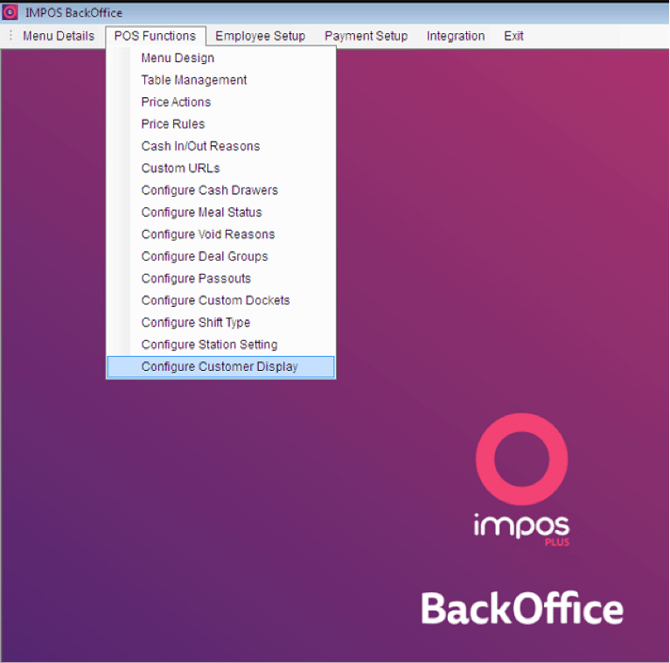
Within this view you can determine which images are available in the system, viewable under *general settings*, and nominate the desired images for the POS to display, viewable under *terminal settings*.
To add new images to your *customer display library*, head to general settings and select *new item*, then press the \[…\] button to locate files on the local computer.
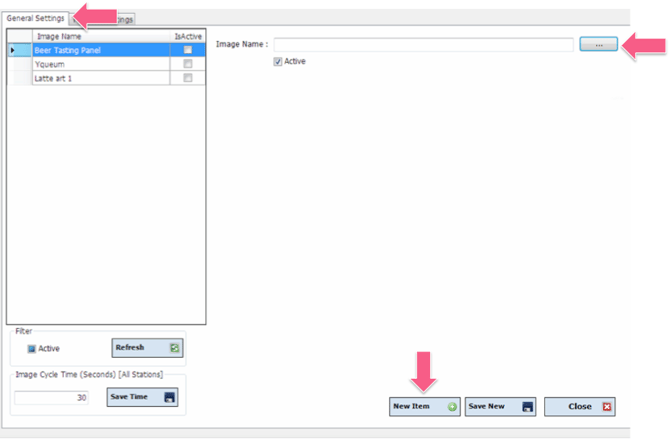
Once an item is selected, a preview of the image will be displayed. The image can be renamed for your own identification purposes. Once completed, select s*ave new* and the image will be added to the general library.
Each POS terminal will display all images by default. To assign specific images to a POS terminal, select the *Terminal Settings* tab, and select the POS terminal from the drop-down list. From here you’ll be able to determine which images are displayed next to the product cart in the *Select Terminal Display Images* check box. You can also select which image appears on the standby screen in the *Terminal Standby Image* section. The duration of the image display can be set by altering the *Terminal Cycle* setting. If no selections are made, the POS terminal will operate under the default settings.
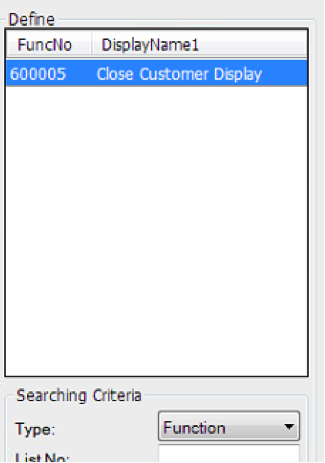
To close the customer display, you’ll need to add *close customer display* function to the menu design. The below window must be closed and re-opened to allow the configuration changes to replicate.
- [How to Connect to your Venue Remotely](https://knowledge.impos.com.au/how-to-connect-to-your-venue-remotely?hsLang=en-au#main-content)
- [How to Connect to your Venue Remotely](https://knowledge.impos.com.au/how-to-connect-to-your-venue-remotely?hsLang=en-au#how-to-connect-to-your-venue-remotely)
- [Impos Back Office and Stock](https://knowledge.impos.com.au/impos-back-office-and-stock?hsLang=en-au#main-content)
- [Stock](https://knowledge.impos.com.au/impos-back-office-and-stock?hsLang=en-au#stock)
- [Back Office](https://knowledge.impos.com.au/impos-back-office-and-stock?hsLang=en-au#back-office)
- [Impos Front Office](https://knowledge.impos.com.au/impos-front-office?hsLang=en-au#main-content)
- [Cashier Reports](https://knowledge.impos.com.au/impos-front-office?hsLang=en-au#cashier-reports)
- [Getting Started with Impos Front Office](https://knowledge.impos.com.au/impos-front-office?hsLang=en-au#getting-started-with-impos-front-office)
- [Order Information](https://knowledge.impos.com.au/impos-front-office?hsLang=en-au#order-information)
- [Table Service](https://knowledge.impos.com.au/impos-front-office?hsLang=en-au#table-service)
- [Storing Order information in Front Office](https://knowledge.impos.com.au/impos-front-office?hsLang=en-au#storing-order-information-in-front-office)
- [Taking Payment](https://knowledge.impos.com.au/impos-front-office?hsLang=en-au#taking-payment)
- [Web Reports](https://knowledge.impos.com.au/impos-front-office?hsLang=en-au#web-reports)
- [More Functions](https://knowledge.impos.com.au/impos-front-office?hsLang=en-au#more-functions)
- [Impos Analytics](https://knowledge.impos.com.au/impos-analytics?hsLang=en-au#main-content)
- [Impos Analytics](https://knowledge.impos.com.au/impos-analytics?hsLang=en-au#impos-analytics)
- [Integrations](https://knowledge.impos.com.au/integrations?hsLang=en-au#main-content)
- [Doshii](https://knowledge.impos.com.au/integrations?hsLang=en-au#doshii)
- [Kitchen & Inventory Management](https://knowledge.impos.com.au/integrations?hsLang=en-au#kitchen-inventory-management)
- [Reservations & Room Charge](https://knowledge.impos.com.au/integrations?hsLang=en-au#reservations-room-charge)
- [Deputy Rostering](https://knowledge.impos.com.au/integrations?hsLang=en-au#deputy-rostering)
- [Promotions & Membership](https://knowledge.impos.com.au/integrations?hsLang=en-au#promotions-membership)
- [Bump Screens](https://knowledge.impos.com.au/integrations?hsLang=en-au#bump-screens)
- [Accounting](https://knowledge.impos.com.au/integrations?hsLang=en-au#accounting)
- [EFTPOS](https://knowledge.impos.com.au/integrations?hsLang=en-au#eftpos)
- [Cinch](https://knowledge.impos.com.au/cinch?hsLang=en-au#main-content)
- [Cinch Web Publishing](https://knowledge.impos.com.au/cinch?hsLang=en-au#cinch-web-publishing)
- [Cinch Basics](https://knowledge.impos.com.au/cinch?hsLang=en-au#cinch-basics)
- [Kiosk](https://knowledge.impos.com.au/kiosk?hsLang=en-au#main-content)
- [Setting Up Kiosk](https://knowledge.impos.com.au/kiosk?hsLang=en-au#setting-up-kiosk)
- [Latest Updates](https://knowledge.impos.com.au/latest-updates?hsLang=en-au#main-content)
- [Release Notes](https://knowledge.impos.com.au/latest-updates?hsLang=en-au#release-notes)
- [Policy Updates](https://knowledge.impos.com.au/latest-updates?hsLang=en-au#policy-updates)
- [FAQs](https://knowledge.impos.com.au/faqs?hsLang=en-au#main-content)
- [FAQs - Front Office](https://knowledge.impos.com.au/faqs?hsLang=en-au#faqs-front-office)
- [FAQs - Back Office](https://knowledge.impos.com.au/faqs?hsLang=en-au#faqs-back-office)
- [FAQs - Hardware eg Printers, Terminals, Tablets, Networking](https://knowledge.impos.com.au/faqs?hsLang=en-au#faqs-hardware-eg-printers-terminals-tablets-networking)
- [FAQs - Onboarding, Installation and Training](https://knowledge.impos.com.au/faqs?hsLang=en-au#faqs-onboarding-installation-and-training)
- [FAQs - Stock](https://knowledge.impos.com.au/faqs?hsLang=en-au#faqs-stock)
- [FAQs - Schools](https://knowledge.impos.com.au/faqs?hsLang=en-au#faqs-schools)
- [Troubleshooting](https://knowledge.impos.com.au/troubleshooting?hsLang=en-au)
[](https://impos.com.au/)
[mailto:email@email.com](mailto:email@email.com)
Copyright © 2026, Impos