---
title: Check Access
description: Learn about the Check Access feature in Impos POS. View and manage open checks, tabs, and stored orders easily.
---
[Skip to content](https://knowledge.impos.com.au/hc/en-us/articles/360000889155-check-access#main-content)
English - Australia
Show submenu for translations
[More support](https://knowledge.impos.com.au/kb-tickets/new?hsLang=en-au)
[](https://impos.com.au)
Open main navigation
Close main navigation
- English - Australia
Show submenu for translations
- [More support](https://knowledge.impos.com.au/kb-tickets/new)
- [visit impos.com.au](https://impos.com.au/)
[visit impos.com.au](https://impos.com.au/)
How can we help you?
- There are no suggestions because the search field is empty.
1. [Impos Knowledge Base](https://knowledge.impos.com.au/?hsLang=en-au)
2. [Impos Front Office](https://knowledge.impos.com.au/impos-front-office?hsLang=en-au)
3. [Storing Order information in Front Office](https://knowledge.impos.com.au/impos-front-office?hsLang=en-au#storing-order-information-in-front-office)
14 May 2026
# Check Access
## All of your Order information can be accessed through the Check Access screen.
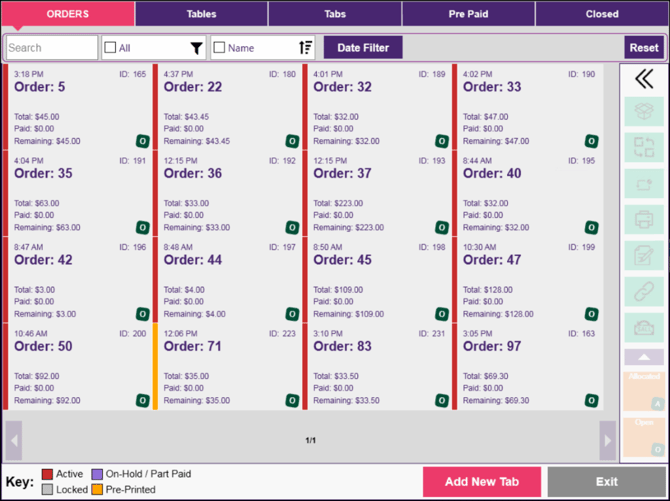
**Filtering the checks displayed on the screen.**
The tabs across the top allow you to filter the list of displayed checks based on the check type.

*Normal Orders currently open on the system will be displayed – these are orders that are not associated with a tab or a table.*

*Table will be displayed on the floor plan, please see Floor Plan section below.*
**
*Tabs currently open on the system will be displayed*

*Orders that were made through the our cloud ordering integrations that were paid for during the order process will be displayed.*

*Closed orders will be displayed.*
Further filtering is available – some or all of the filters below will appear depending on the check type tab you are currently looking at.


1. Allows you to filter checks based on text, eg order name or tab name.
2. Allows you to filter checks based on the status of the checks:
1. Linked – tabs that are linked to tables.
2. Pre-Printed – orders that have had the bill printed.
3. Active – orders that have items on them but are not opened on any POS in the system.
4. Locked – orders that are locked on the system, either because they are opened on another POS, or are in the process of receiving payment from a payment integration.
5. On Hold / Part Paid – orders that are either on hold, or have a payment recorded against them but still have an outstanding amount owing.
3. If you have a cloud reservation integration enabled, you can toggle to view tabs that are associated with future bookings, and view pre-orders for bookings.
4. Click to activate the date filter.
5. Resets all the filters back to their default state.
6. Filters checks that were open after the selected date / time.
7. Filters checks that were open before the selected date / time.
**Check Details Panel**
All the details about the selected check can be seen on the Check Access Screen – this is the only screen you need to look at to gain all the available information about any check on the system.
The check details are displayed on the right-hand side of the Check Access Screen in the Check Details Panel.
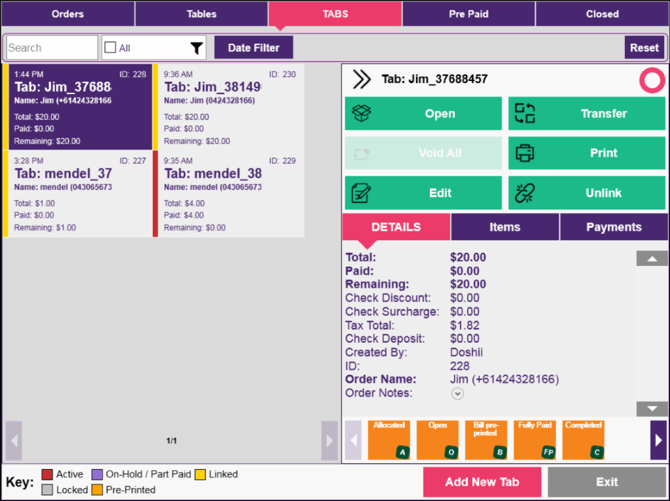
The Check Details Panel can be collapsed to allow more checks to be displayed on the screen.
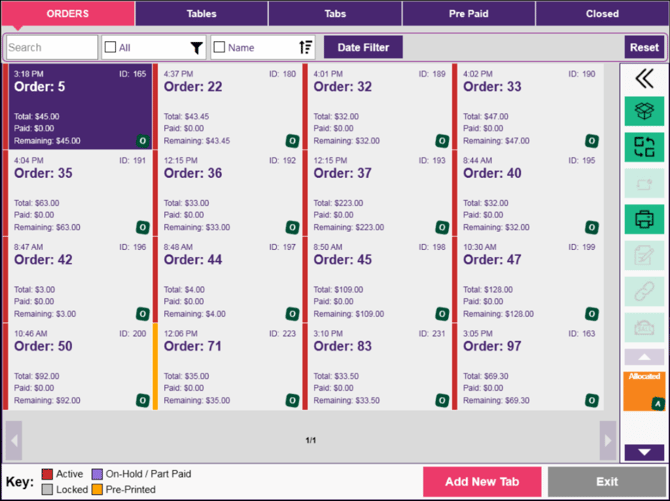
***Check Details Information***
The expanded Check Details Panel will display information about the current check
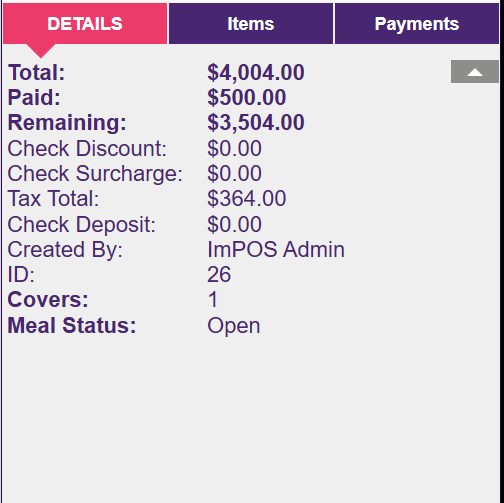
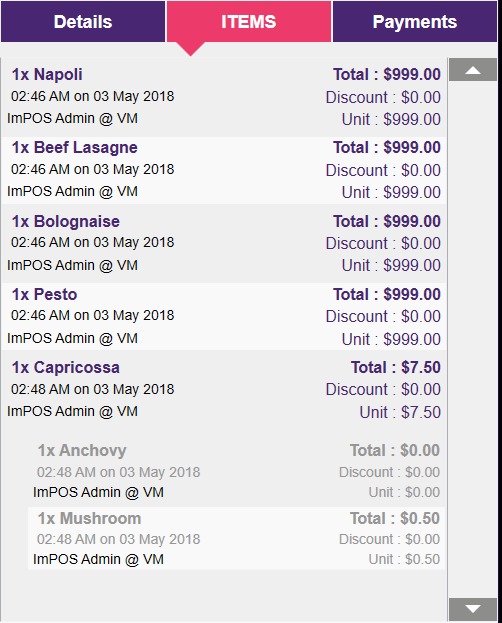
Items that are ordered on the check
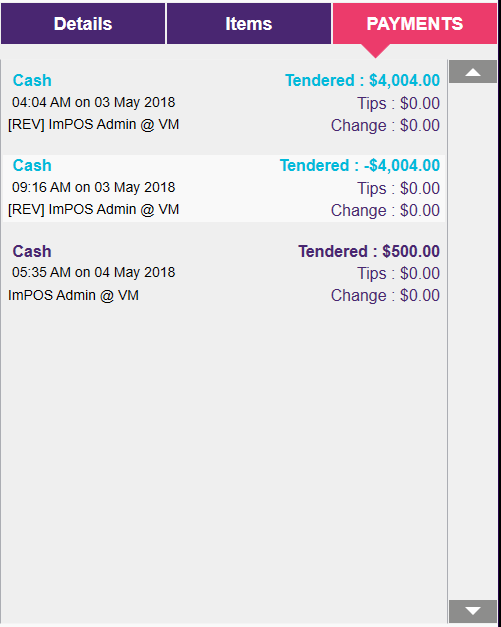
And all payments that have been recorded against the check
*Functions*
The check details panel makes available many functions that you can apply to a check without having to open the check in the Menu Screen.
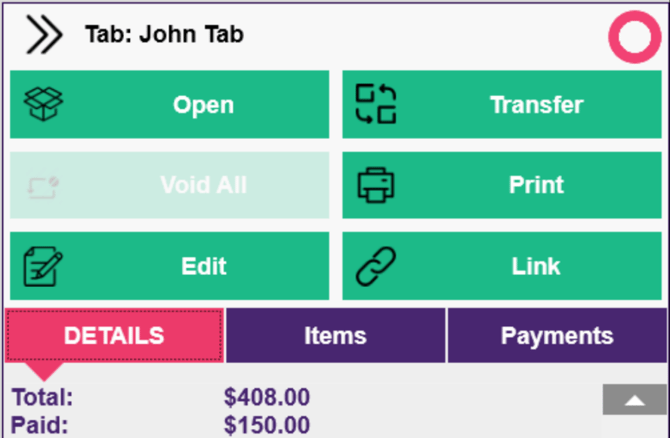
When the Check Details panel is expanded the available functions are displayed in green above the details section. (Unavailable functions are greyed/lightened out.)

When the Check Details Panel is collapsed, the available check functions are in green above the meal status section. Unavailable functions are greyed/lightened out.
Depending on which check is selected, its status, and what previous functions have been applied to it, some or all of the following functions may be available within the Check Access Panel:
*Open*
When a check is selected in the Check Access Screen this function will open the check on the system.

*Edit*
When a tab is selected in the Check Access Screen this function will open the Tab Edit Screen

*Link*
When a tab that is not linked to a table is selected in the Check Access Screen this function will allow you to link the tab to a table.

*Unlink*
When a tab or table that is linked is selected in the Check Access Screen this function will allow you to unlink the tab or table.

*Print*
When a check is selected in the Check Access Screen this will allow you to print the bill for the selected check.


*Transfer*
When a check is selected in the Check Access Screen this function will allow you to transfer orders, tabs or tables to other orders, tabs or tables.

*Void All*
When a check is selected in the Check Access Screen this function will allow you to void all the items on the check.

*Reverse Payment*
When a closed check is selected in the Check Access Screen this function will allow you to reverse all the payments associated with the check. See Refund and Reverse below for more details about this function.

*Refund*
When a payment has been selected from the check payments list, this function will allow you to refund the individual payment. See Refund and Reverse below for more details about this function.
*Change Payment Method*
When a payment has been selected from the check payments list, this function will allow you to change the payment method associated with the payment.
*Meal Status*
Meal statuses are now available for all check types in Impos – they were previously only available for table orders.

The meal status buttons appear at the bottom of the Check Details panel when the check details panel is expanded.
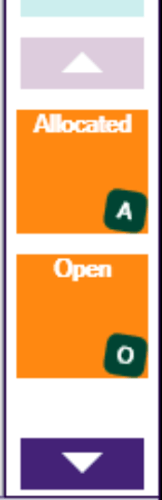
The meal status buttons appear under the function buttons on the Check Details panel when it is collapsed.
To apply a meal status to a check, you must first select the check in the Check Access Screen and then select the meal status you wish to apply on the Check Details panel. The meal status will then be assigned to the check.
You can view the current meal status of the check on the check card in the Check Access screen.
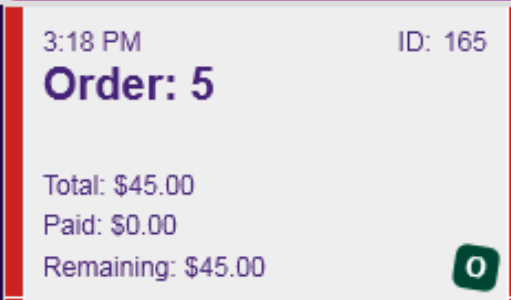
On Check Access cards the meal status is visible on the bottom right of the check card.

On the floor plan the meal status is visible on the top left of the tables.
**Checks Displayed**
It is now possible to change the maximum number of checks displayed per page in the Check Access Screen.
*Setting the number of checks displayed*
Go to station settings in back office
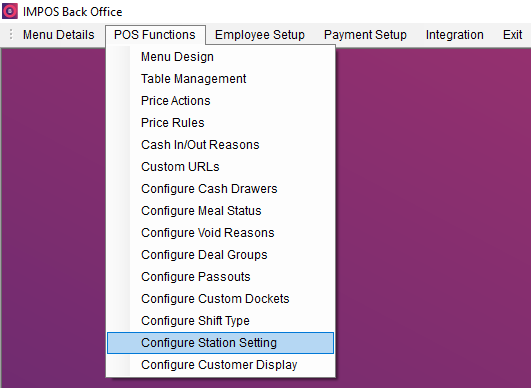
Select the terminal you want to modify the settings for on the left side of the screen.
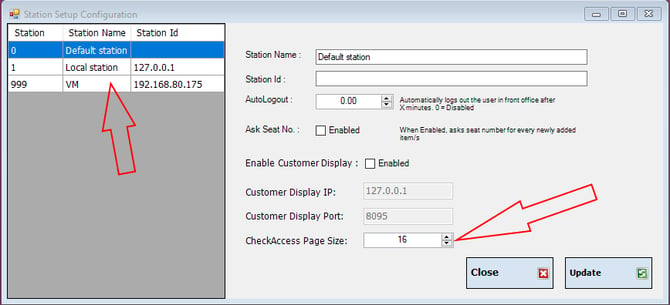
Select the maximum number of checks you would like to see displayed per page in the Check Access Screen.
*Front Office View*
When you have 16 checks selected in Impos Back Office, the Check Access Screen will display 16 check cards per page.
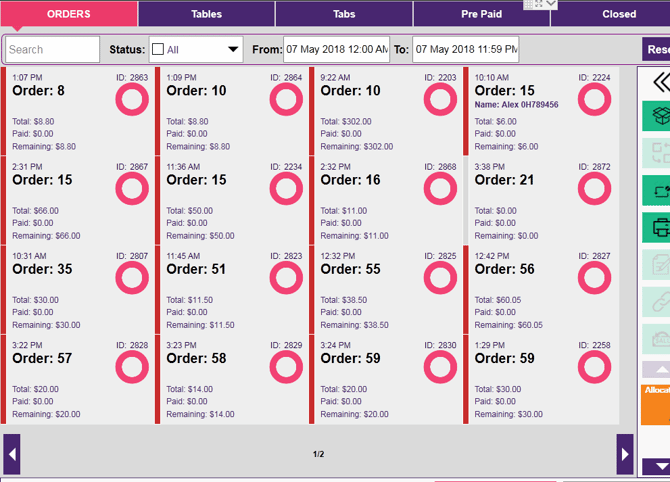
Notice above that this is page 1 of 2
If you have 3 checks selected in Impos Back Office, the Check Access Screen will display 3 check cards per page
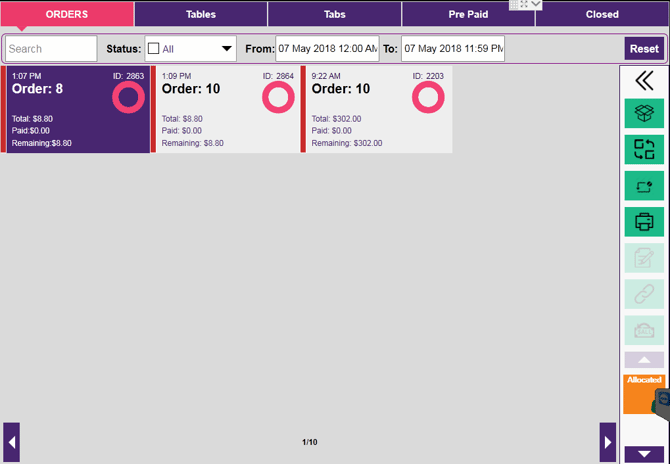
Notice that this is now page 1 of 10
The when you are deciding how many check cards to display per page, you should take into account your hardware screen size, screen resolution and whether you are likely to need the Check Details panel expanded during operation.
*Advised settings*
For standard Impos terminal with resolution 1024 x 768:
If you are likely to have the Check Details panel expanded during operation you should select 8 as the CheckAccess Screen Size.
If you are likely to have the Check Details panel collapsed you should select between 12 and 16 checks to be displayed.
**Floor Plan**
The floor plan has been moved to the Check Access Screen. This provides all the previous functionality of the floor plan, and also gives access to all the above functions through the Check Access Screen functions.
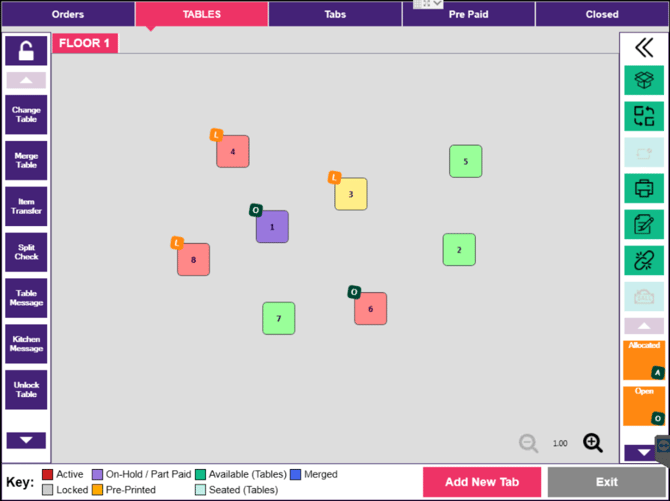
The only filter available on the floor plan view of the Check Access Screen is the floor filter. You can select the floor by clicking on the floor you wish to view above the table layout.

*Floor Functions*
Functions specific to the floor plan are now available on the left of the floor plan.
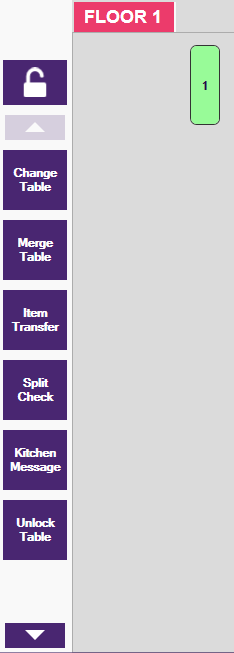
All functions that are available for other checks in the Check Access Screen are also now available for tables displayed in the floor plan. See Check Access Screen section above for details.
- [How to Connect to your Venue Remotely](https://knowledge.impos.com.au/how-to-connect-to-your-venue-remotely?hsLang=en-au#main-content)
- [How to Connect to your Venue Remotely](https://knowledge.impos.com.au/how-to-connect-to-your-venue-remotely?hsLang=en-au#how-to-connect-to-your-venue-remotely)
- [Impos Back Office and Stock](https://knowledge.impos.com.au/impos-back-office-and-stock?hsLang=en-au#main-content)
- [Stock](https://knowledge.impos.com.au/impos-back-office-and-stock?hsLang=en-au#stock)
- [Back Office](https://knowledge.impos.com.au/impos-back-office-and-stock?hsLang=en-au#back-office)
- [Impos Front Office](https://knowledge.impos.com.au/impos-front-office?hsLang=en-au#main-content)
- [Cashier Reports](https://knowledge.impos.com.au/impos-front-office?hsLang=en-au#cashier-reports)
- [Getting Started with Impos Front Office](https://knowledge.impos.com.au/impos-front-office?hsLang=en-au#getting-started-with-impos-front-office)
- [Order Information](https://knowledge.impos.com.au/impos-front-office?hsLang=en-au#order-information)
- [Table Service](https://knowledge.impos.com.au/impos-front-office?hsLang=en-au#table-service)
- [Storing Order information in Front Office](https://knowledge.impos.com.au/impos-front-office?hsLang=en-au#storing-order-information-in-front-office)
- [Taking Payment](https://knowledge.impos.com.au/impos-front-office?hsLang=en-au#taking-payment)
- [Web Reports](https://knowledge.impos.com.au/impos-front-office?hsLang=en-au#web-reports)
- [More Functions](https://knowledge.impos.com.au/impos-front-office?hsLang=en-au#more-functions)
- [Impos Analytics](https://knowledge.impos.com.au/impos-analytics?hsLang=en-au#main-content)
- [Impos Analytics](https://knowledge.impos.com.au/impos-analytics?hsLang=en-au#impos-analytics)
- [Integrations](https://knowledge.impos.com.au/integrations?hsLang=en-au#main-content)
- [Doshii](https://knowledge.impos.com.au/integrations?hsLang=en-au#doshii)
- [Kitchen & Inventory Management](https://knowledge.impos.com.au/integrations?hsLang=en-au#kitchen-inventory-management)
- [Reservations & Room Charge](https://knowledge.impos.com.au/integrations?hsLang=en-au#reservations-room-charge)
- [Deputy Rostering](https://knowledge.impos.com.au/integrations?hsLang=en-au#deputy-rostering)
- [Promotions & Membership](https://knowledge.impos.com.au/integrations?hsLang=en-au#promotions-membership)
- [Bump Screens](https://knowledge.impos.com.au/integrations?hsLang=en-au#bump-screens)
- [Accounting](https://knowledge.impos.com.au/integrations?hsLang=en-au#accounting)
- [EFTPOS](https://knowledge.impos.com.au/integrations?hsLang=en-au#eftpos)
- [Cinch](https://knowledge.impos.com.au/cinch?hsLang=en-au#main-content)
- [Cinch Web Publishing](https://knowledge.impos.com.au/cinch?hsLang=en-au#cinch-web-publishing)
- [Cinch Basics](https://knowledge.impos.com.au/cinch?hsLang=en-au#cinch-basics)
- [Kiosk](https://knowledge.impos.com.au/kiosk?hsLang=en-au#main-content)
- [Setting Up Kiosk](https://knowledge.impos.com.au/kiosk?hsLang=en-au#setting-up-kiosk)
- [Latest Updates](https://knowledge.impos.com.au/latest-updates?hsLang=en-au#main-content)
- [Release Notes](https://knowledge.impos.com.au/latest-updates?hsLang=en-au#release-notes)
- [Policy Updates](https://knowledge.impos.com.au/latest-updates?hsLang=en-au#policy-updates)
- [FAQs](https://knowledge.impos.com.au/faqs?hsLang=en-au#main-content)
- [FAQs - Front Office](https://knowledge.impos.com.au/faqs?hsLang=en-au#faqs-front-office)
- [FAQs - Back Office](https://knowledge.impos.com.au/faqs?hsLang=en-au#faqs-back-office)
- [FAQs - Hardware eg Printers, Terminals, Tablets, Networking](https://knowledge.impos.com.au/faqs?hsLang=en-au#faqs-hardware-eg-printers-terminals-tablets-networking)
- [FAQs - Onboarding, Installation and Training](https://knowledge.impos.com.au/faqs?hsLang=en-au#faqs-onboarding-installation-and-training)
- [FAQs - Stock](https://knowledge.impos.com.au/faqs?hsLang=en-au#faqs-stock)
- [FAQs - Schools](https://knowledge.impos.com.au/faqs?hsLang=en-au#faqs-schools)
- [Troubleshooting](https://knowledge.impos.com.au/troubleshooting?hsLang=en-au)
[](https://impos.com.au/)
[mailto:email@email.com](mailto:email@email.com)
Copyright © 2026, Impos