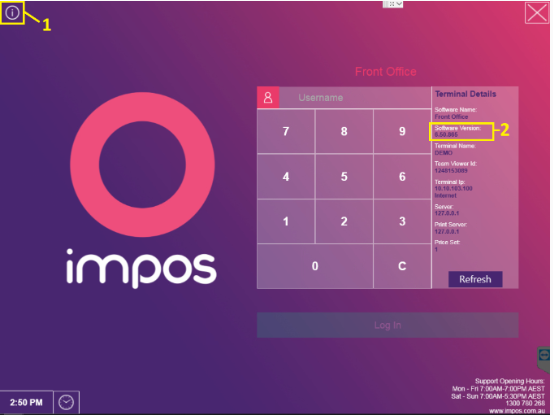
From the Impos Front Office, start by checking your current software version. As Impos regularly releases updates with new features, you may need to upgrade if the integration relies on a newer version.
To check your software version:
You can find the Impos Front Office version from the login screen. Simply click the Info button located in the top-left corner of the screen (see Figure 1). Your current Front Office software version will then be displayed (see Figure 2).
If advised by your integration that you will require a software upgrade please contact Impos support on 1300 780 268 to schedule one.
Check your Doshii Location ID
Open your Back Office program.
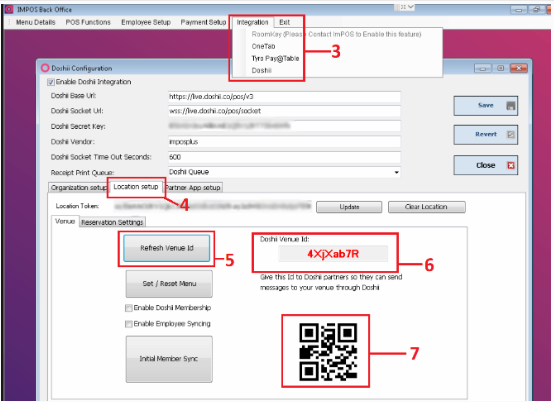
From there, navigate to Doshii Configuration via the Integrations tab (see Figure 3).
Select the Location Setup tab (see Figure 4).
Click the Refresh Venue ID button (see Figure 5).
Your Doshii Location ID should then be displayed (see Figure 6).
A barcode version of the Doshii Location ID will also be available for integrations that support scanning directly (see Figure 7).
If any of these fields are blank, you may need to contact Impos support to enable Doshii integrations on your system.