
Assigning Email Addresses To Supplier
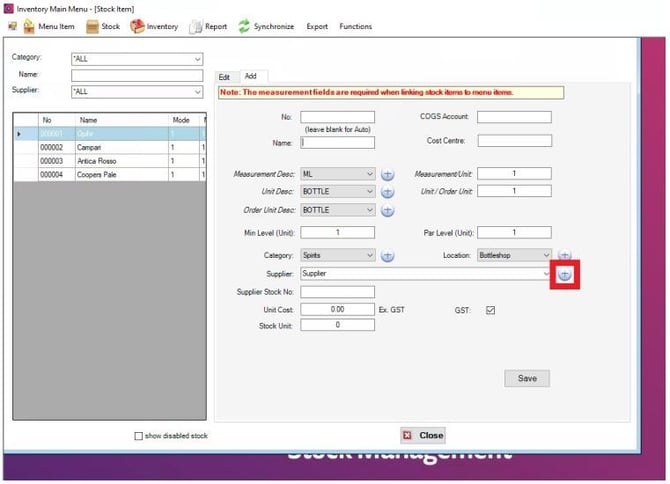
When Creating a new supplier, or updating an existing one’s contact details, select the “+” symbol
next to the Supplier field in the Create Stock Item tab.
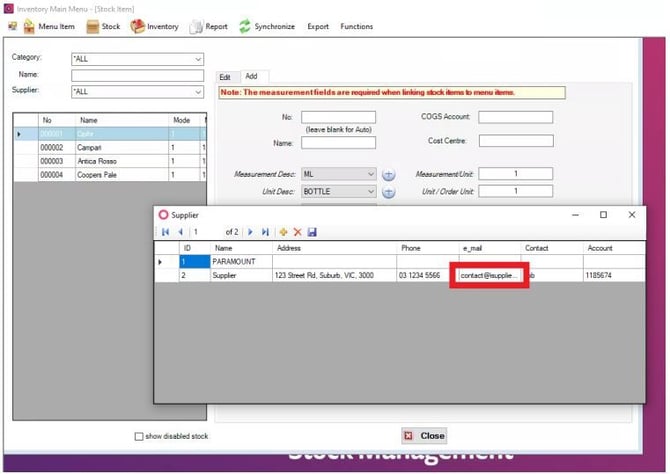
Make sure your supplier has an email address in the e-mail field to be able to send orders to.
Return Email
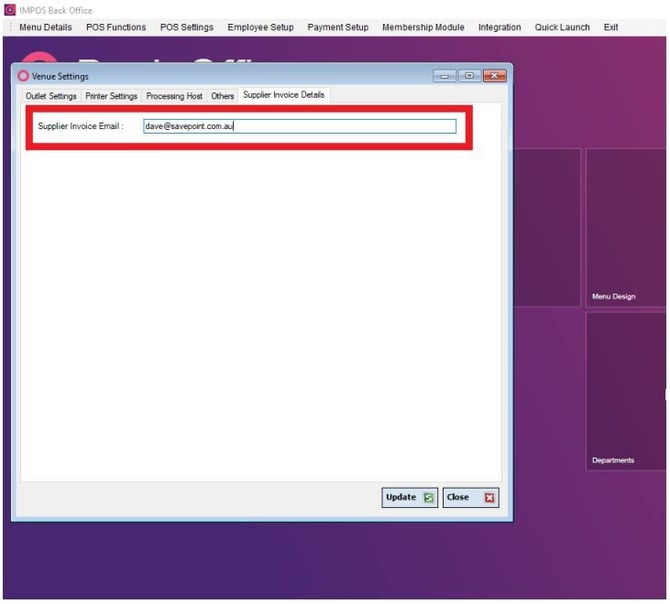
In Back Office under POS Settings->Venue Settings, there is a new Tab labelled Supplier Invoice
Details, this is where you enter in your return email address.
Emailing a Purchase Order
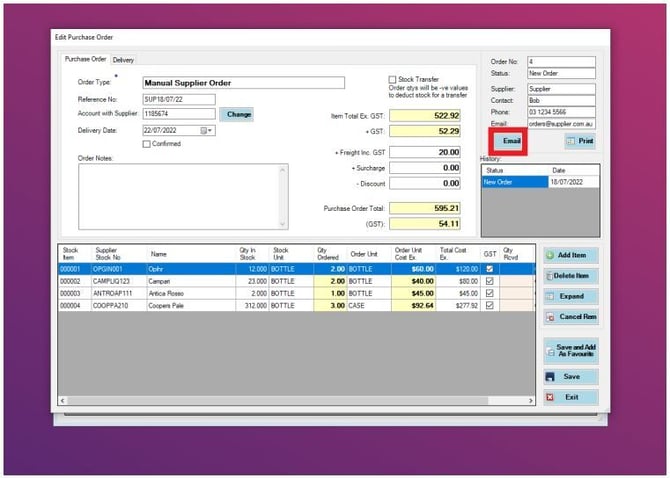
After generating a Purchase Order as normal, there is now a new option on the right-hand side
labelled Email.
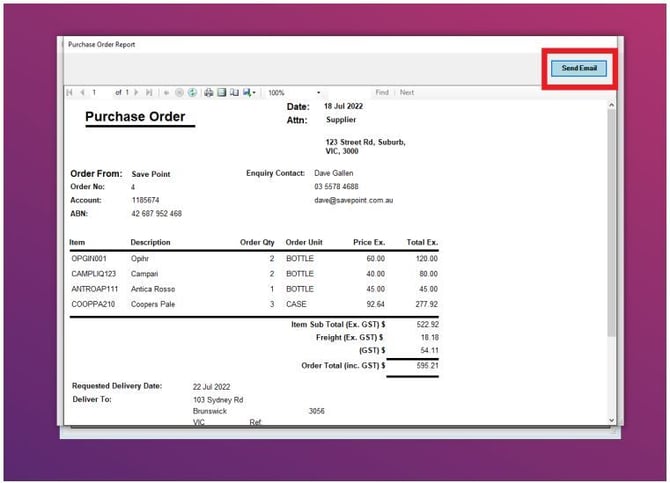
After generating your purchase order, select the Send Email option in the top right. Sending this off will move your Purchase Order to the Order Sent stage, where you can continue the process of arriving in a Purchase Order as normal.