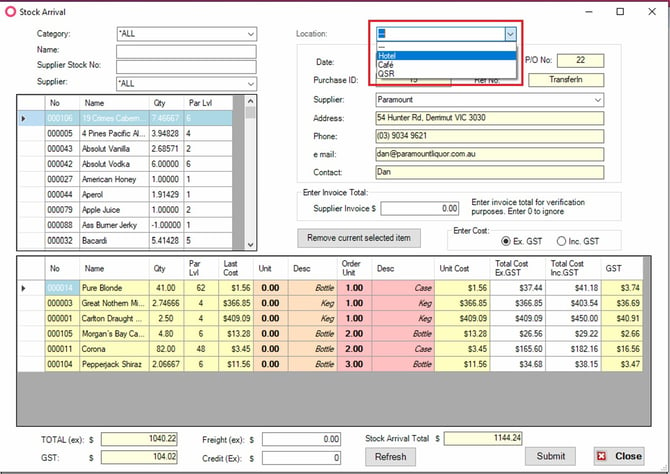
Transferring Stock Out
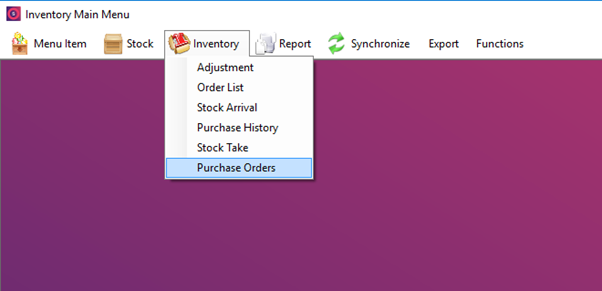
To access the purchase order screen, select the Inventory dropdown, and nominate purchase orders, as shown below.
After creating your purchase order using the steps outlined with Inventory Purchase Orders. Check the box in the top right hand corner labeled Transfer.
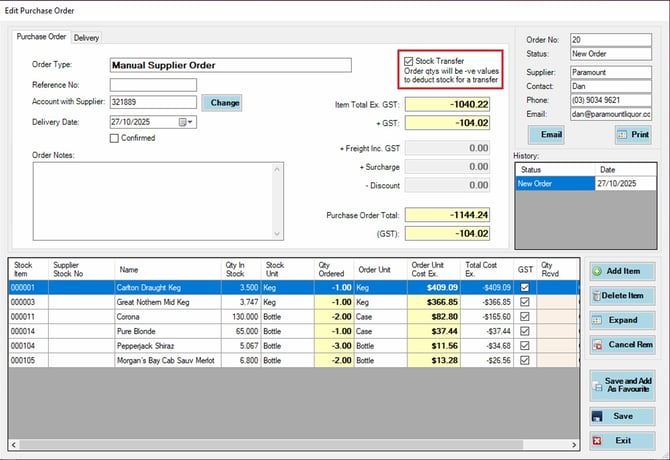
This will make any Stock Items with a value set to a decremented level to be removed from Stock when arrived back in if you follow the same processes outlined when doing a Stock Arrival with a Purchase Order.
If you are running Stock in more than one location, on the Stock Arrival screen, choose which location you are taking your stock from.
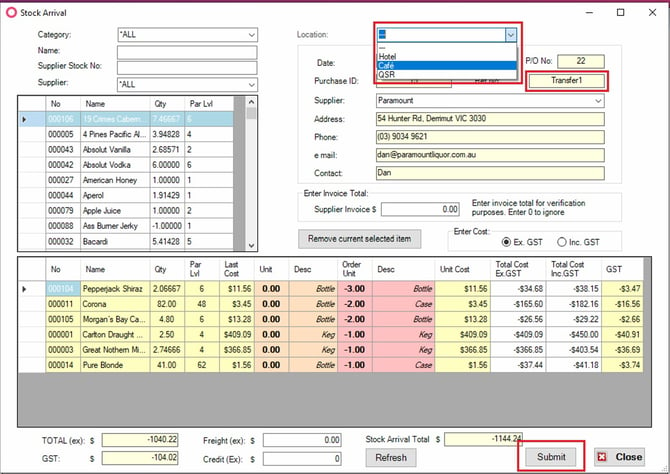
Transferring Stock within venue to another location
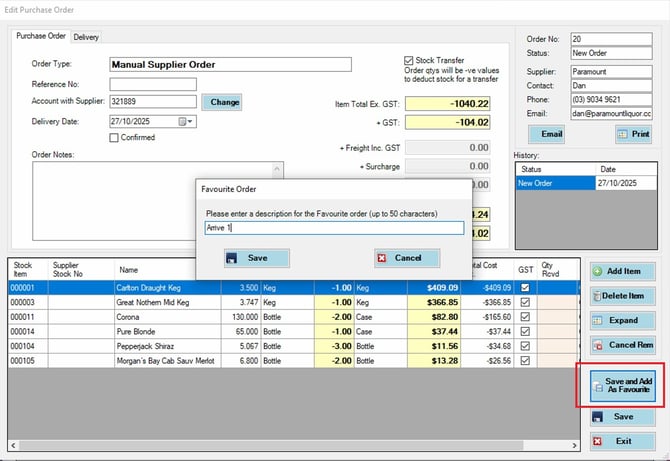
Following the same process as above, before you save your purchase order, choose the option Save and Add As Favourite, and name the Transfer you are doing.
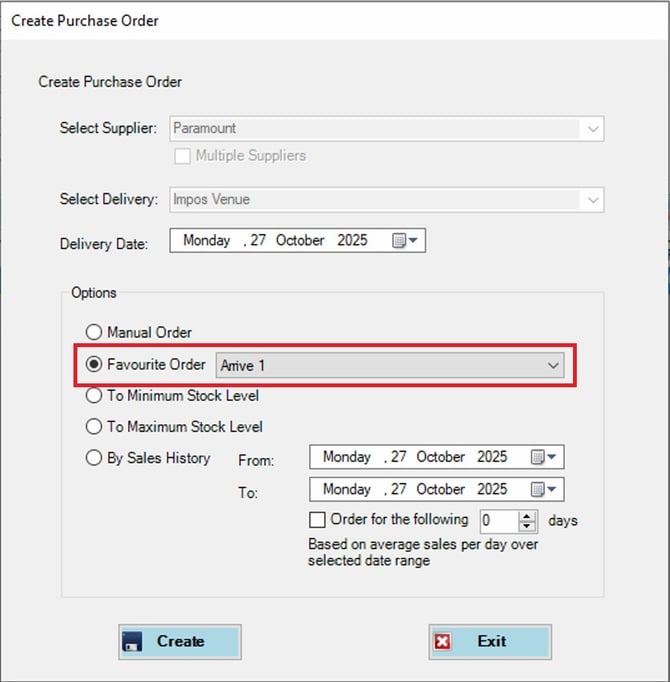
After your stock has been transferred out, start a new Purchase Order and under Favourite Order, choose the one you recently created.
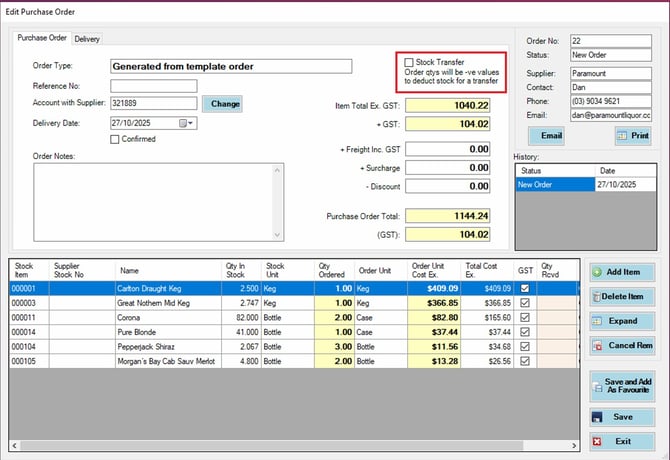
In the Order that was made uncheck the Stock Transfer option to return those to positive arriving values.
When Arriving the Stock in, choose the location that you are adding your stock into.