---
title: Zen Global Integration
description: Set up and manage the Zen Global with Impos POS. Import promotions, manage memberships, and automate pricing.
---
[Skip to content](https://knowledge.impos.com.au/hc/en-us/articles/14018868166543-zen-global-integration#main-content)
English - Australia
Show submenu for translations
[More support](https://knowledge.impos.com.au/kb-tickets/new?hsLang=en-au)
[](https://impos.com.au)
Open main navigation
Close main navigation
- English - Australia
Show submenu for translations
- [More support](https://knowledge.impos.com.au/kb-tickets/new)
- [visit impos.com.au](https://impos.com.au/)
[visit impos.com.au](https://impos.com.au/)
How can we help you?
- There are no suggestions because the search field is empty.
1. [Impos Knowledge Base](https://knowledge.impos.com.au/?hsLang=en-au)
2. [Integrations](https://knowledge.impos.com.au/integrations?hsLang=en-au)
3. [Promotions & Membership](https://knowledge.impos.com.au/integrations?hsLang=en-au#promotions-membership)
14 May 2026
# Zen Global Integration
## Real-Time Loyalty, Gift Card, and Rewards Redemption Through Impos Integration with Zen Global
**Overview**
The Impos and Zen Global integration enables users to take advantage of the powerful loyalty and gift vouchers systems offered by Zen Global from within the Impos Point of Sale. Member details are retrieved dynamically from Zen Global, offers are presented at checkout and rewards can be redeemed in real time. Gift cards can be purchased, recharged and redeemed directly from Impos.
**System Requirements**
• Impos Version 6.60 and newer.
• An active internet connection.
**Initial Setup**
1\. Obtain integration credentials from Zen Global, including your unique:
a. API Access Key
b. API Client Key
c. Site Code
d. Site Serial
2\. Configure Impos to use these keys.
a. Navigate to Back Office - Integration - Loyalty - Zen Global
b. You will be presented with a screen allowing these keys to be entered
c. 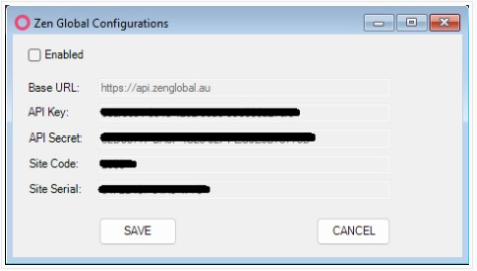
d. Save the credentials.
e. Contact Impos if the Base URL is missing or you require additional support.
**Membership**
By default, Impos will use the “LMG Membership” card type for all members retrieved through Zen Global.
*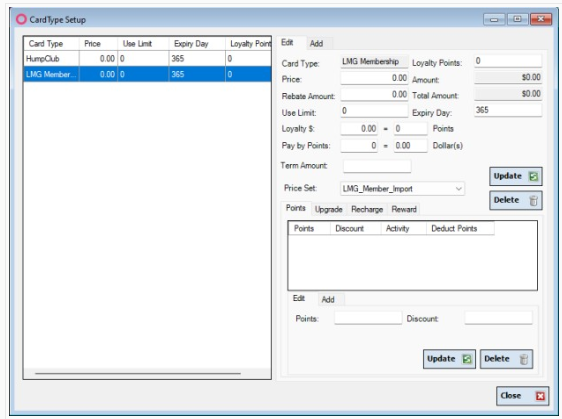*
Here, you can configure settings including:
• Point accrual and spend rates
• Point-based discount thresholds
• Impos rewards
**NOTE:** These are separate to offers provided through Zen Global. Those offers are at the sole discretion of Zen Global and your business’ loyalty program.
**Gift Cards**
*Adding Gift Card items*
Impos supports purchase of Gift Cards within a normal order workflow. Navigate to Back Office -\> Menu Details -\> Items. Add new items, or update existing ones, and select the “Zen Gift Card” type.
*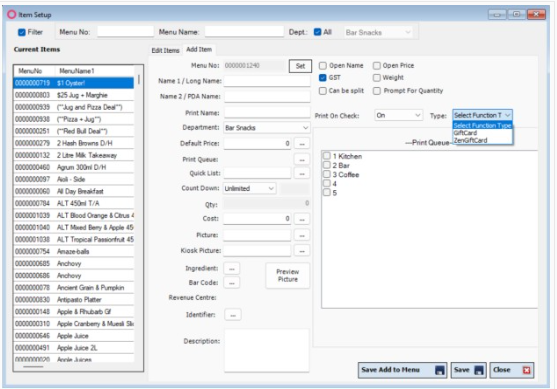*
Here you can configure the pricing, of the Gift Card. For example, by setting the price to $50 you will be able to charge a Gift Card with $50 at time of purchase. You can also use Open Price for customisable gift card amounts.
*Adding a payment method for Gift Card redemption*
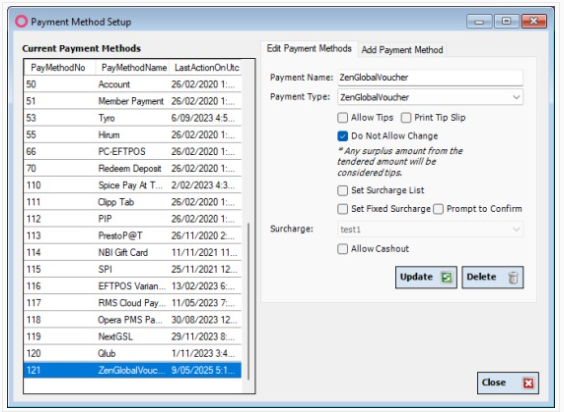
To redeem Gift Cards, a payment method needs to be added to the POS. By default, Impos creates a new payment method called “ZenGlobalVoucher” available in your Payment Methods list under Back Office -\> Payment Setup -\> Payment Methods.
**
**Rebates**
There is no further configuration required for transaction data (scan data). By enabling Zen Global, Impos will automatically send all transactions.
**Daily Operations**
Assigning a member
Impos provides two mechanisms for assigning a member.
Firstly, scanning the member’s card will immediately perform a lookup to see if they exist. If they exist in Impos, the member will be instantly assigned to the order and any available offers will be available for selection.
If the member does not exist in Impos, Impos will validate the member in Zen Global and subsequently create it. The newly created member will be immediately assigned to the order and offers will be displayed for selection.
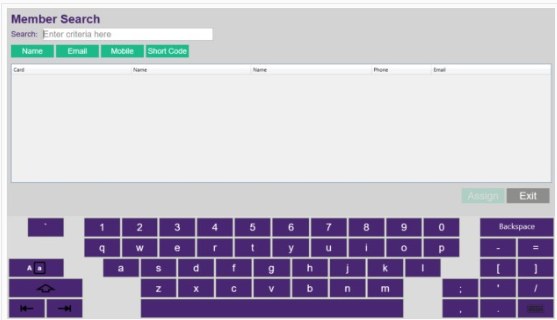
Secondly, using the Zen Member lookup screen, users can search for a member based on several attributes including name, email, phone number or short code. Once the member is identified, double clicking or selecting the Assign button will create the member in Impos and assign them to the current order. Any available offers will be shown for selection.
**
Purchase a Gift Card
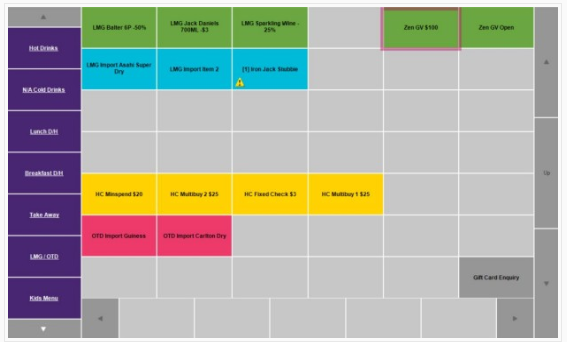
A gift card purchase is the same as any existing item. Selecting the “Zen GV $100” item in the Order Grid will display a prompt asking for the Gift Card number to be entered.
**
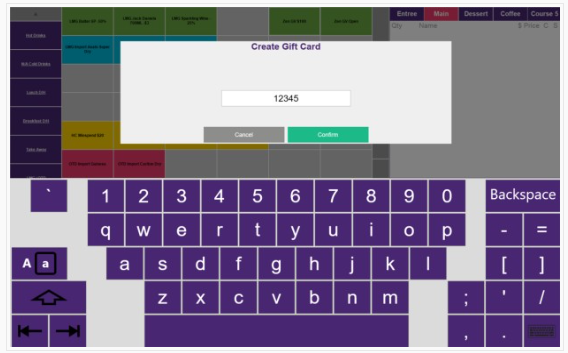
Enter the card number into the “Reference” field. This is important so that Impos knows which card is being purchases (or added to).
**
After confirming the number, the Gift Card is added to the Order Item List and ready for payment.
*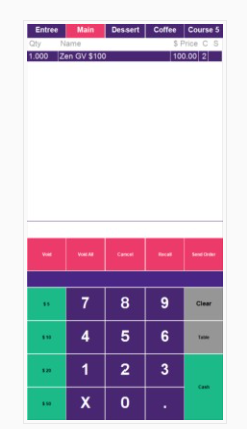*
Completing the purchase will immediately update the card’s balance in Zen Global.
Redeem a Gift Card
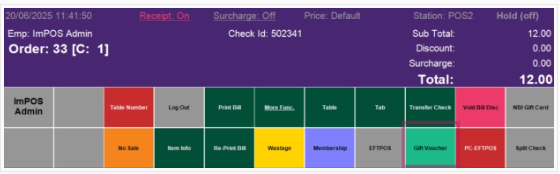
To redeem a gift card, use the Gift Voucher button in the POS Function List.
**
This will prompt the card number and a PIN.
*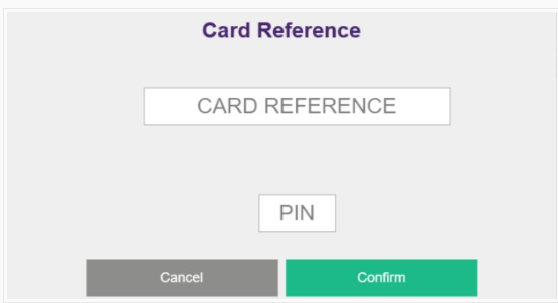*
**NOTE:** **The PIN is not always mandatory, and it depends on the Zen Global site configuration. Reach out to the Zen Global team to modify this parameter.**
**Support and Contact Information**
To request additional support, you can reach out to the Impos Customer Service team through these channels:
• Webchat on https://impos.com.au
• By email using customerservice@impos.com.au
• By phone on 1300 780 268
- [How to Connect to your Venue Remotely](https://knowledge.impos.com.au/how-to-connect-to-your-venue-remotely?hsLang=en-au#main-content)
- [How to Connect to your Venue Remotely](https://knowledge.impos.com.au/how-to-connect-to-your-venue-remotely?hsLang=en-au#how-to-connect-to-your-venue-remotely)
- [Impos Back Office and Stock](https://knowledge.impos.com.au/impos-back-office-and-stock?hsLang=en-au#main-content)
- [Stock](https://knowledge.impos.com.au/impos-back-office-and-stock?hsLang=en-au#stock)
- [Back Office](https://knowledge.impos.com.au/impos-back-office-and-stock?hsLang=en-au#back-office)
- [Impos Front Office](https://knowledge.impos.com.au/impos-front-office?hsLang=en-au#main-content)
- [Cashier Reports](https://knowledge.impos.com.au/impos-front-office?hsLang=en-au#cashier-reports)
- [Getting Started with Impos Front Office](https://knowledge.impos.com.au/impos-front-office?hsLang=en-au#getting-started-with-impos-front-office)
- [Order Information](https://knowledge.impos.com.au/impos-front-office?hsLang=en-au#order-information)
- [Table Service](https://knowledge.impos.com.au/impos-front-office?hsLang=en-au#table-service)
- [Storing Order information in Front Office](https://knowledge.impos.com.au/impos-front-office?hsLang=en-au#storing-order-information-in-front-office)
- [Taking Payment](https://knowledge.impos.com.au/impos-front-office?hsLang=en-au#taking-payment)
- [Web Reports](https://knowledge.impos.com.au/impos-front-office?hsLang=en-au#web-reports)
- [More Functions](https://knowledge.impos.com.au/impos-front-office?hsLang=en-au#more-functions)
- [Impos Analytics](https://knowledge.impos.com.au/impos-analytics?hsLang=en-au#main-content)
- [Impos Analytics](https://knowledge.impos.com.au/impos-analytics?hsLang=en-au#impos-analytics)
- [Integrations](https://knowledge.impos.com.au/integrations?hsLang=en-au#main-content)
- [Doshii](https://knowledge.impos.com.au/integrations?hsLang=en-au#doshii)
- [Kitchen & Inventory Management](https://knowledge.impos.com.au/integrations?hsLang=en-au#kitchen-inventory-management)
- [Reservations & Room Charge](https://knowledge.impos.com.au/integrations?hsLang=en-au#reservations-room-charge)
- [Deputy Rostering](https://knowledge.impos.com.au/integrations?hsLang=en-au#deputy-rostering)
- [Promotions & Membership](https://knowledge.impos.com.au/integrations?hsLang=en-au#promotions-membership)
- [Bump Screens](https://knowledge.impos.com.au/integrations?hsLang=en-au#bump-screens)
- [Accounting](https://knowledge.impos.com.au/integrations?hsLang=en-au#accounting)
- [EFTPOS](https://knowledge.impos.com.au/integrations?hsLang=en-au#eftpos)
- [Cinch](https://knowledge.impos.com.au/cinch?hsLang=en-au#main-content)
- [Cinch Web Publishing](https://knowledge.impos.com.au/cinch?hsLang=en-au#cinch-web-publishing)
- [Cinch Basics](https://knowledge.impos.com.au/cinch?hsLang=en-au#cinch-basics)
- [Kiosk](https://knowledge.impos.com.au/kiosk?hsLang=en-au#main-content)
- [Setting Up Kiosk](https://knowledge.impos.com.au/kiosk?hsLang=en-au#setting-up-kiosk)
- [Latest Updates](https://knowledge.impos.com.au/latest-updates?hsLang=en-au#main-content)
- [Release Notes](https://knowledge.impos.com.au/latest-updates?hsLang=en-au#release-notes)
- [Policy Updates](https://knowledge.impos.com.au/latest-updates?hsLang=en-au#policy-updates)
- [FAQs](https://knowledge.impos.com.au/faqs?hsLang=en-au#main-content)
- [FAQs - Front Office](https://knowledge.impos.com.au/faqs?hsLang=en-au#faqs-front-office)
- [FAQs - Back Office](https://knowledge.impos.com.au/faqs?hsLang=en-au#faqs-back-office)
- [FAQs - Hardware eg Printers, Terminals, Tablets, Networking](https://knowledge.impos.com.au/faqs?hsLang=en-au#faqs-hardware-eg-printers-terminals-tablets-networking)
- [FAQs - Onboarding, Installation and Training](https://knowledge.impos.com.au/faqs?hsLang=en-au#faqs-onboarding-installation-and-training)
- [FAQs - Stock](https://knowledge.impos.com.au/faqs?hsLang=en-au#faqs-stock)
- [FAQs - Schools](https://knowledge.impos.com.au/faqs?hsLang=en-au#faqs-schools)
- [Troubleshooting](https://knowledge.impos.com.au/troubleshooting?hsLang=en-au)
[](https://impos.com.au/)
[mailto:email@email.com](mailto:email@email.com)
Copyright © 2026, Impos