---
title: Mandatory Seat Numbers
description: Guide to mandatory seat numbers in Impos POS. Manage dine-in orders, table assignments, and service flow efficiently.
---
[Skip to content](https://knowledge.impos.com.au/hc/en-us/articles/115006243187-mandatory-seat-numbers#main-content)
English - Australia
Show submenu for translations
[More support](https://knowledge.impos.com.au/kb-tickets/new?hsLang=en-au)
[](https://impos.com.au)
Open main navigation
Close main navigation
- English - Australia
Show submenu for translations
- [More support](https://knowledge.impos.com.au/kb-tickets/new)
- [visit impos.com.au](https://impos.com.au/)
[visit impos.com.au](https://impos.com.au/)
How can we help you?
- There are no suggestions because the search field is empty.
1. [Impos Knowledge Base](https://knowledge.impos.com.au/?hsLang=en-au)
2. [Impos Front Office](https://knowledge.impos.com.au/impos-front-office?hsLang=en-au)
3. [Table Service](https://knowledge.impos.com.au/impos-front-office?hsLang=en-au#table-service)
26 August 2026
# Mandatory Seat Numbers
Impos can prompt your staff members to enter a ‘seat number’ for each item entered on a table, to speed up service and ensure that your waiters know the correct position number when dispensing food and beverages.
This functionality is enabled on a per POS basis, ensuring that your speed of service is increased on your waiter station terminals. Your bar terminal can remain unaffected.
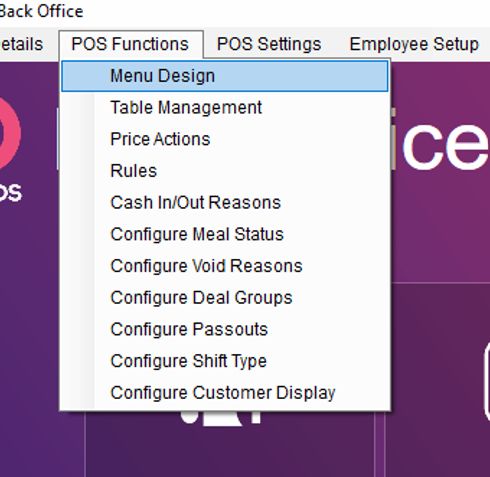
In Back Office, head to the ‘POS Functions’ drop down, and select ‘Menu Design’.
These functions can be added to any screen of your choice. For this example, we’ll use the More Func. Screen.
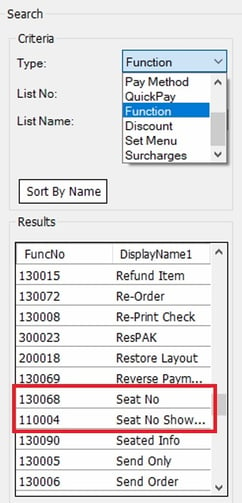
In the ‘Searching Criteria’ section, select ‘Function’ from the ‘Type’ dropdown, and add the ‘Show/Hide Seat Number’. This will be used to toggle the seat number column in the product cart.
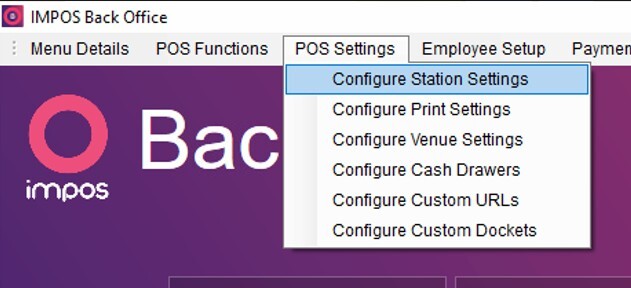
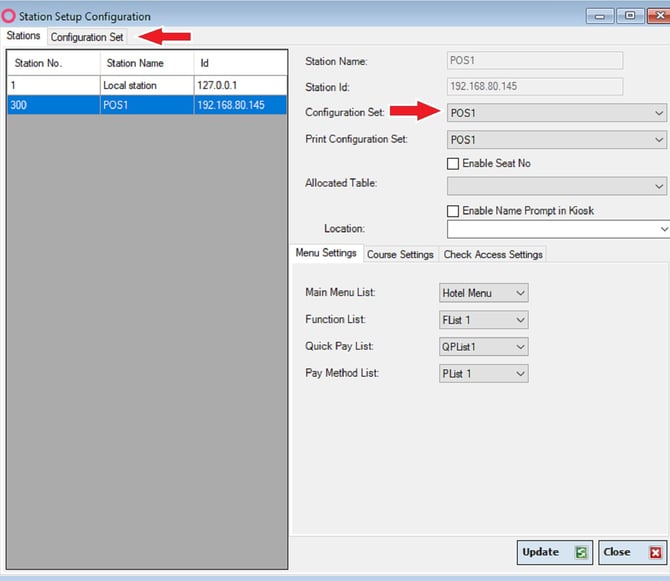
Alternatively, you can head to the section saying ‘Configure Station Setting’, highlighted in the image above. Select the the Terminal you want to enable the Seat No. column and check the box saying Enable Seat No.
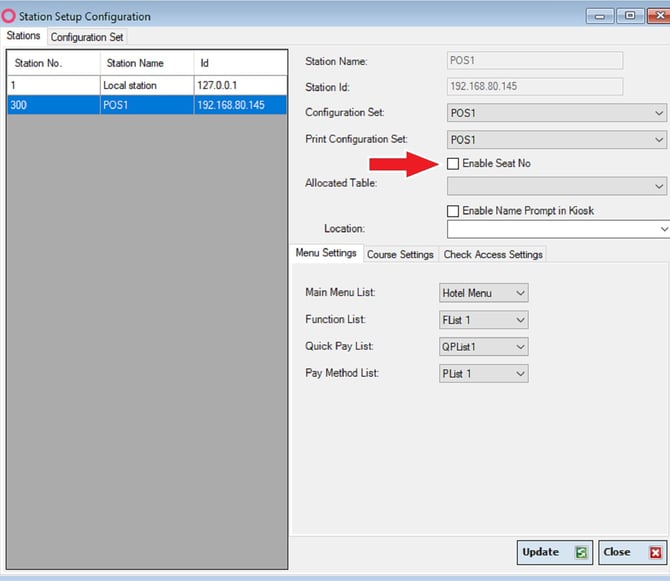
To have then have items automatically prompt, make note of which Configuration Set the station uses and select the tab saying Configuration Set above.
This is where you’ll be able to select which POS terminal automatically prompts for a seat number. Firstly, select the station from the list on the left and tick the ‘Enabled’ check box on the right.
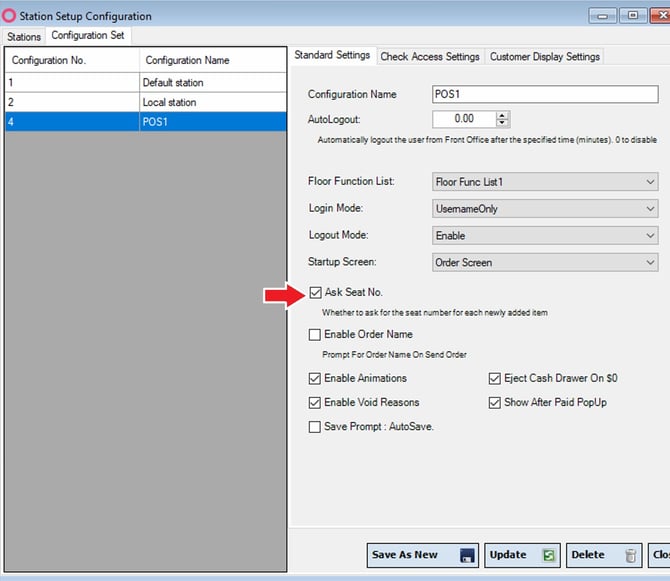
Once this has been selected, you’re ready to go! We’ll walk through the process in Front Office.
If you haven't enabled the Show Station No function in back office, you can use the ‘Show/Hide Seat No’ function to enable the 4th column in the product cart called “S” that displays the seat number. This will only need to be done once per terminal, as once the seat number column is turned on, it will remain on.

Once the seat number is being shown, it’s setup! Each time you add an item to the cart for a table order, you’ll be prompted for a seat number.
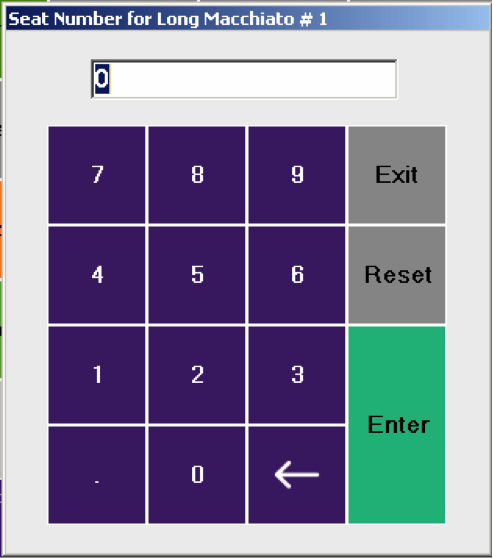
This seat number will populate the “S” column in the product cart.
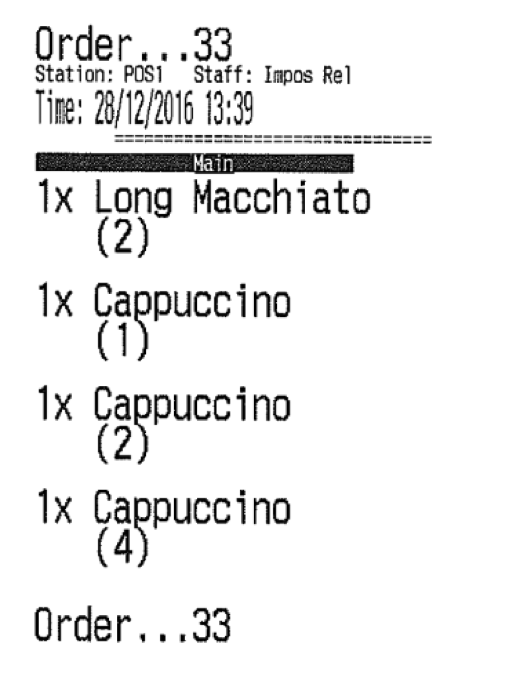
Please note, if you purchase multiple items by using the keypad first (e.g. three cappuccinos) the system will prompt for a seat number for each item, and print these out in order, depending on your docket sorting setup.
Seat numbers appear on production dockets in brackets under the item and modifiers.
**FAQs**
**I keep pressing enter and nothing happens?**
The seat number prompt cannot be left empty. Simply pressing enter and not adding a seat number is not a valid entry.
**What happens if I make a mistake and I need to correct the seat number?**
You can still assign and re-assign a seat number using the regular ‘Seat No’ function in Impos, by first entering the number via the keypad, then pressing ‘Seat No’
**Why doesn’t the seat number doesn’t appear for every order?**
The seat number functionality will only prompt if the order is currently on a table.
If you have any questions please give Impos Support a call on 1300 780 268.
- [How to Connect to your Venue Remotely](https://knowledge.impos.com.au/how-to-connect-to-your-venue-remotely?hsLang=en-au#main-content)
- [How to Connect to your Venue Remotely](https://knowledge.impos.com.au/how-to-connect-to-your-venue-remotely?hsLang=en-au#how-to-connect-to-your-venue-remotely)
- [Impos Back Office and Stock](https://knowledge.impos.com.au/impos-back-office-and-stock?hsLang=en-au#main-content)
- [Stock](https://knowledge.impos.com.au/impos-back-office-and-stock?hsLang=en-au#stock)
- [Back Office](https://knowledge.impos.com.au/impos-back-office-and-stock?hsLang=en-au#back-office)
- [Impos Front Office](https://knowledge.impos.com.au/impos-front-office?hsLang=en-au#main-content)
- [Cashier Reports](https://knowledge.impos.com.au/impos-front-office?hsLang=en-au#cashier-reports)
- [Getting Started with Impos Front Office](https://knowledge.impos.com.au/impos-front-office?hsLang=en-au#getting-started-with-impos-front-office)
- [Order Information](https://knowledge.impos.com.au/impos-front-office?hsLang=en-au#order-information)
- [Table Service](https://knowledge.impos.com.au/impos-front-office?hsLang=en-au#table-service)
- [Storing Order information in Front Office](https://knowledge.impos.com.au/impos-front-office?hsLang=en-au#storing-order-information-in-front-office)
- [Taking Payment](https://knowledge.impos.com.au/impos-front-office?hsLang=en-au#taking-payment)
- [Web Reports](https://knowledge.impos.com.au/impos-front-office?hsLang=en-au#web-reports)
- [More Functions](https://knowledge.impos.com.au/impos-front-office?hsLang=en-au#more-functions)
- [Impos Analytics](https://knowledge.impos.com.au/impos-analytics?hsLang=en-au#main-content)
- [Impos Analytics](https://knowledge.impos.com.au/impos-analytics?hsLang=en-au#impos-analytics)
- [Integrations](https://knowledge.impos.com.au/integrations?hsLang=en-au#main-content)
- [Doshii](https://knowledge.impos.com.au/integrations?hsLang=en-au#doshii)
- [Kitchen & Inventory Management](https://knowledge.impos.com.au/integrations?hsLang=en-au#kitchen-inventory-management)
- [Reservations & Room Charge](https://knowledge.impos.com.au/integrations?hsLang=en-au#reservations-room-charge)
- [Deputy Rostering](https://knowledge.impos.com.au/integrations?hsLang=en-au#deputy-rostering)
- [Promotions & Membership](https://knowledge.impos.com.au/integrations?hsLang=en-au#promotions-membership)
- [Bump Screens](https://knowledge.impos.com.au/integrations?hsLang=en-au#bump-screens)
- [Accounting](https://knowledge.impos.com.au/integrations?hsLang=en-au#accounting)
- [EFTPOS](https://knowledge.impos.com.au/integrations?hsLang=en-au#eftpos)
- [Cinch](https://knowledge.impos.com.au/cinch?hsLang=en-au#main-content)
- [Cinch Web Publishing](https://knowledge.impos.com.au/cinch?hsLang=en-au#cinch-web-publishing)
- [Cinch Basics](https://knowledge.impos.com.au/cinch?hsLang=en-au#cinch-basics)
- [Kiosk](https://knowledge.impos.com.au/kiosk?hsLang=en-au#main-content)
- [Setting Up Kiosk](https://knowledge.impos.com.au/kiosk?hsLang=en-au#setting-up-kiosk)
- [Latest Updates](https://knowledge.impos.com.au/latest-updates?hsLang=en-au#main-content)
- [Release Notes](https://knowledge.impos.com.au/latest-updates?hsLang=en-au#release-notes)
- [Policy Updates](https://knowledge.impos.com.au/latest-updates?hsLang=en-au#policy-updates)
- [FAQs](https://knowledge.impos.com.au/faqs?hsLang=en-au#main-content)
- [FAQs - Front Office](https://knowledge.impos.com.au/faqs?hsLang=en-au#faqs-front-office)
- [FAQs - Back Office](https://knowledge.impos.com.au/faqs?hsLang=en-au#faqs-back-office)
- [FAQs - Hardware eg Printers, Terminals, Tablets, Networking](https://knowledge.impos.com.au/faqs?hsLang=en-au#faqs-hardware-eg-printers-terminals-tablets-networking)
- [FAQs - Onboarding, Installation and Training](https://knowledge.impos.com.au/faqs?hsLang=en-au#faqs-onboarding-installation-and-training)
- [FAQs - Stock](https://knowledge.impos.com.au/faqs?hsLang=en-au#faqs-stock)
- [FAQs - Schools](https://knowledge.impos.com.au/faqs?hsLang=en-au#faqs-schools)
- [Troubleshooting](https://knowledge.impos.com.au/troubleshooting?hsLang=en-au)
[](https://impos.com.au/)
[mailto:email@email.com](mailto:email@email.com)
Copyright © 2026, Impos