---
title: Performing Stocktakes
description: Guide to performing stocktakes in Impos POS. Manage your venue's inventory, stock levels, and supply chain efficiently.
---
[Skip to content](https://knowledge.impos.com.au/hc/en-us/articles/115000786388-performing-stocktakes#main-content)
English - Australia
Show submenu for translations
[More support](https://knowledge.impos.com.au/kb-tickets/new?hsLang=en-au)
[](https://impos.com.au)
Open main navigation
Close main navigation
- English - Australia
Show submenu for translations
- [More support](https://knowledge.impos.com.au/kb-tickets/new)
- [visit impos.com.au](https://impos.com.au/)
[visit impos.com.au](https://impos.com.au/)
How can we help you?
- There are no suggestions because the search field is empty.
1. [Impos Knowledge Base](https://knowledge.impos.com.au/?hsLang=en-au)
2. [Impos Back Office and Stock](https://knowledge.impos.com.au/impos-back-office-and-stock?hsLang=en-au)
3. [Stock](https://knowledge.impos.com.au/impos-back-office-and-stock?hsLang=en-au#stock)
13 May 2026
# Performing Stocktakes
## Performing Stocktakes allows you to keep track of your stock accurately and find any variances to the stock on hand.
**Using the Impos Stock module, please ensure you have completed the following before beginning a stocktake**
1. Your [Stock Items](https://learn.impos.com.au/hc/en-us/articles/115000737867-Creating-new-stock-items?hsLang=en-au) are setup correctly
2. Your menu items are [linked to your stock items](https://learn.impos.com.au/hc/en-us/articles/115000785568-Linking-Menu-items-to-stock-items?hsLang=en-au)
3. All invoices for the stocktake period have been entered using the “[Stock Arrival](https://learn.impos.com.au/hc/en-us/articles/115000787188-Stock-Arrival-without-Purchase-orders?hsLang=en-au)” function
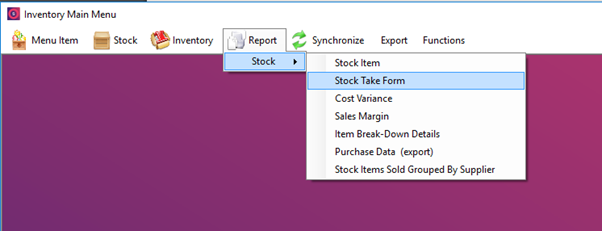
- To print out stock count sheets if counting manually:
- Go to Report
- Stocktake form
**
- If using barcode scanner:
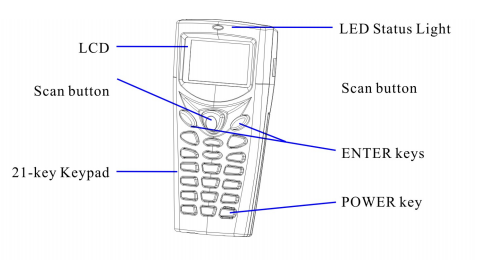
- Turn scanner on with power button in lower right corner.
- Scanner will default to collection mode.
- Access the menu by pressing ESC on top left
- Scroll to utilities and use option 3. Delete data (note the blue button in the top left is Yes)
- Select delete all data, Yes
- Please note that you can delete just the last entry using utilities, delete data, Last one.
- Once Cipherlab scanner is empty, you can begin stocktake
- Access the menu by pressing escape and choosing collect.
- Use the middle yellow button to activate the scanning beam, and once scanned, enter quantity. Please note that the system will take each entry as an addition, not an overriding quantity for that barcode.
- Once data is read and stocktake is completed, you are ready to enter the stocktake
- Begin a new stocktake by pressing Inventory button
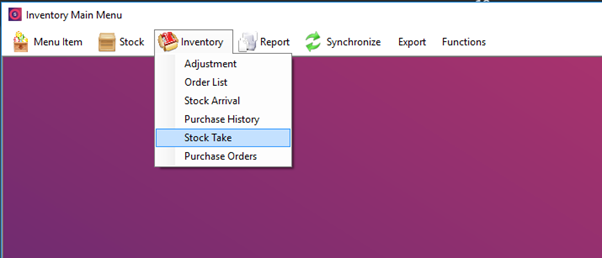
- Stocktake button
- Start a new stocktake
- The system will then ask you to synchronize up to the point at which you finished counting the stocktake. Any sales processed after the synchronization time will not count towards this stocktake, but will contribute to the next.
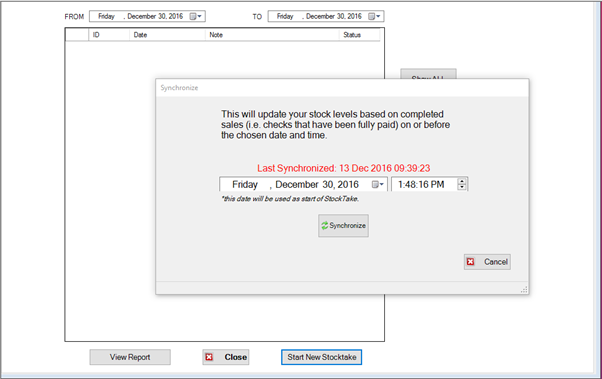
- Once you have synchronized, you’ll be able to enter stocktake information.
- The notes section at the top of the stocktake is for information on who performed the stocktake.
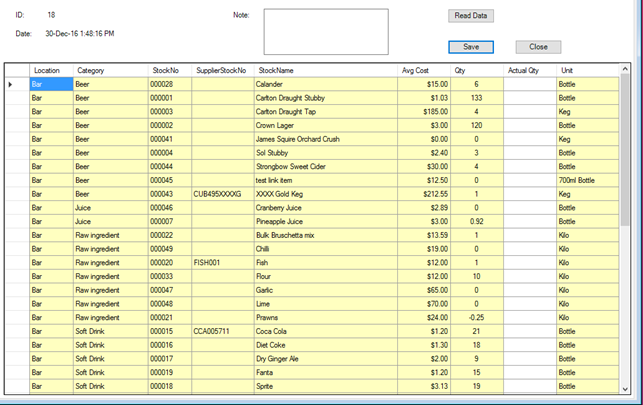
- At this point you are able to read the data directly from the Cipherlab scanner by ensuring the scanner is in the cradle at the time and pressing “Read Data”. You may also manually enter the information from the count sheets in the window.
- If you did not enter a value into the Actual QTY column, no variance will be effected, the theoretical quantity will be carried over by the system.
- Once stocktake is entered you are able to save the count and a preview of the variance report will be produced.
- We suggest reading through the variance report and noting anything unusual. You have the opportunity to re-count and items you choose at this point.
- Close the report
- The system can show all reports in progress by pressing “Show only stocktake in progress”
- Double click on the stocktake in progress
- You are able to alter any count items at this stage. To preview the report again, click the “Save” button then the “report” button.
- Once the stocktake and re-count has been completed and you are satisfied with the result, press the POST button to finalize the stocktake. Please note that the theoretical holding of the stock will not be updated until the stocktake has been Posted. You are only able to have 1 stocktake open at any time.
- Once posted, the system will give a final variance report and holding stock.
- All stocktake reports are available to be seen at any stage through the stocktake window, by adjusting the date range to view the reports that have been “Posted”.
Scanner Sample File
The scanner file format would be (bar-code number,) (scan count).
> The text file produced by the scanner would look like the following:
>
> 5060006410000,20
> 9320000120289,7
> 9318691000805,17
> 9320000108539,17
> 93302036,27
> 93302074,9
> 08066145,20
> 93248327,36
> 9320000122061,8
> 93497466,20
> 9325528000020,8
> 9325528000426,8
> 8008440222008,21
> 9320000113861,26
> 5410228141266,16
> 9328731000504,9
> 9338846000030,3
> 9338846000061,9
> 9346530000099,5
> 9346530000006,7
> 9369999034283,7
> 8594404110127,9
> 5410228141785,1
> 9320000126069,10
> 90162602,13
> 9311493000820,4
> 9311545555667,6
> 9300652010374,3
> 9315596002576,1.5
> 9315596002552,1
> 9315596002569,1.5
> 075496002005,1.8
> 3052910056346,0.25
> 3052910056360,1
> 3052910018948,0.75
> 3052910018917,0.2
> 3052910056438,0.5
> 3052910010225,0.9
> 3052910056247,0.9
> 3052910056339,0.7
> 3052910055264,1.3
> 3052910041021,0.1
> 3052910056278,0.05
> 3052910056391,0.3
> 3052910056469,0.5
> 3052910010232,0.5
> 3052910018924,0.4
> 9310432001454,4
> 9316128000343,3
> 9421021110416,2
> 9313460003353,2
> 9345394000078,2
> 9316572100088,2
> 9316572400126,4
- [How to Connect to your Venue Remotely](https://knowledge.impos.com.au/how-to-connect-to-your-venue-remotely?hsLang=en-au#main-content)
- [How to Connect to your Venue Remotely](https://knowledge.impos.com.au/how-to-connect-to-your-venue-remotely?hsLang=en-au#how-to-connect-to-your-venue-remotely)
- [Impos Back Office and Stock](https://knowledge.impos.com.au/impos-back-office-and-stock?hsLang=en-au#main-content)
- [Stock](https://knowledge.impos.com.au/impos-back-office-and-stock?hsLang=en-au#stock)
- [Back Office](https://knowledge.impos.com.au/impos-back-office-and-stock?hsLang=en-au#back-office)
- [Impos Front Office](https://knowledge.impos.com.au/impos-front-office?hsLang=en-au#main-content)
- [Cashier Reports](https://knowledge.impos.com.au/impos-front-office?hsLang=en-au#cashier-reports)
- [Getting Started with Impos Front Office](https://knowledge.impos.com.au/impos-front-office?hsLang=en-au#getting-started-with-impos-front-office)
- [Order Information](https://knowledge.impos.com.au/impos-front-office?hsLang=en-au#order-information)
- [Table Service](https://knowledge.impos.com.au/impos-front-office?hsLang=en-au#table-service)
- [Storing Order information in Front Office](https://knowledge.impos.com.au/impos-front-office?hsLang=en-au#storing-order-information-in-front-office)
- [Taking Payment](https://knowledge.impos.com.au/impos-front-office?hsLang=en-au#taking-payment)
- [Web Reports](https://knowledge.impos.com.au/impos-front-office?hsLang=en-au#web-reports)
- [More Functions](https://knowledge.impos.com.au/impos-front-office?hsLang=en-au#more-functions)
- [Impos Analytics](https://knowledge.impos.com.au/impos-analytics?hsLang=en-au#main-content)
- [Impos Analytics](https://knowledge.impos.com.au/impos-analytics?hsLang=en-au#impos-analytics)
- [Integrations](https://knowledge.impos.com.au/integrations?hsLang=en-au#main-content)
- [Doshii](https://knowledge.impos.com.au/integrations?hsLang=en-au#doshii)
- [Kitchen & Inventory Management](https://knowledge.impos.com.au/integrations?hsLang=en-au#kitchen-inventory-management)
- [Reservations & Room Charge](https://knowledge.impos.com.au/integrations?hsLang=en-au#reservations-room-charge)
- [Deputy Rostering](https://knowledge.impos.com.au/integrations?hsLang=en-au#deputy-rostering)
- [Promotions & Membership](https://knowledge.impos.com.au/integrations?hsLang=en-au#promotions-membership)
- [Bump Screens](https://knowledge.impos.com.au/integrations?hsLang=en-au#bump-screens)
- [Accounting](https://knowledge.impos.com.au/integrations?hsLang=en-au#accounting)
- [EFTPOS](https://knowledge.impos.com.au/integrations?hsLang=en-au#eftpos)
- [Cinch](https://knowledge.impos.com.au/cinch?hsLang=en-au#main-content)
- [Cinch Web Publishing](https://knowledge.impos.com.au/cinch?hsLang=en-au#cinch-web-publishing)
- [Cinch Basics](https://knowledge.impos.com.au/cinch?hsLang=en-au#cinch-basics)
- [Kiosk](https://knowledge.impos.com.au/kiosk?hsLang=en-au#main-content)
- [Setting Up Kiosk](https://knowledge.impos.com.au/kiosk?hsLang=en-au#setting-up-kiosk)
- [Latest Updates](https://knowledge.impos.com.au/latest-updates?hsLang=en-au#main-content)
- [Release Notes](https://knowledge.impos.com.au/latest-updates?hsLang=en-au#release-notes)
- [Policy Updates](https://knowledge.impos.com.au/latest-updates?hsLang=en-au#policy-updates)
- [FAQs](https://knowledge.impos.com.au/faqs?hsLang=en-au#main-content)
- [FAQs - Front Office](https://knowledge.impos.com.au/faqs?hsLang=en-au#faqs-front-office)
- [FAQs - Back Office](https://knowledge.impos.com.au/faqs?hsLang=en-au#faqs-back-office)
- [FAQs - Hardware eg Printers, Terminals, Tablets, Networking](https://knowledge.impos.com.au/faqs?hsLang=en-au#faqs-hardware-eg-printers-terminals-tablets-networking)
- [FAQs - Onboarding, Installation and Training](https://knowledge.impos.com.au/faqs?hsLang=en-au#faqs-onboarding-installation-and-training)
- [FAQs - Stock](https://knowledge.impos.com.au/faqs?hsLang=en-au#faqs-stock)
- [FAQs - Schools](https://knowledge.impos.com.au/faqs?hsLang=en-au#faqs-schools)
- [Troubleshooting](https://knowledge.impos.com.au/troubleshooting?hsLang=en-au)
[](https://impos.com.au/)
[mailto:email@email.com](mailto:email@email.com)
Copyright © 2026, Impos