---
title: Check Deposits
description: Configure check deposits in Impos Back Office. Manage your POS menu, pricing, and system settings effectively.
---
[Skip to content](https://knowledge.impos.com.au/hc/en-us/articles/115000350288-check-deposits#main-content)
English - Australia
Show submenu for translations
[More support](https://knowledge.impos.com.au/kb-tickets/new?hsLang=en-au)
[](https://impos.com.au)
Open main navigation
Close main navigation
- English - Australia
Show submenu for translations
- [More support](https://knowledge.impos.com.au/kb-tickets/new)
- [visit impos.com.au](https://impos.com.au/)
[visit impos.com.au](https://impos.com.au/)
How can we help you?
- There are no suggestions because the search field is empty.
1. [Impos Knowledge Base](https://knowledge.impos.com.au/?hsLang=en-au)
2. [Impos Front Office](https://knowledge.impos.com.au/impos-front-office?hsLang=en-au)
3. [Taking Payment](https://knowledge.impos.com.au/impos-front-office?hsLang=en-au#taking-payment)
28 August 2026
# Check Deposits
## The Deposit function allows you to take payment in advance for things like functions or tabs.
If the transaction is to be processed many months later, Impos would recommend using the Membership functionality to store deposits, as you are able to search for information more effectively and not retain an open check in your system.
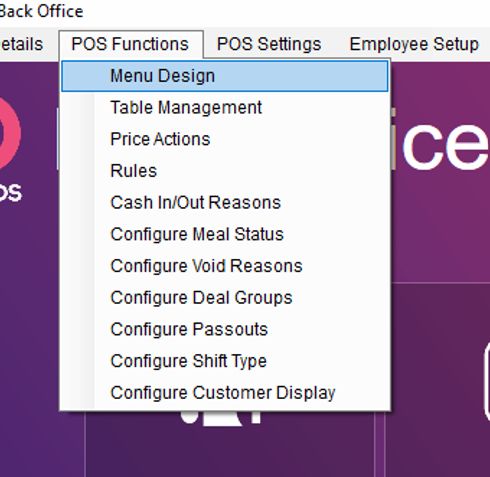
In order to accept and redeem Check Deposits, you’ll first have to add these new functions and Payment Types to the screen. To do this, head to the ‘Menu Design’ selection in the ‘POS functions’ dropdown in Back Office.
In order to add the Check Deposit function, select ‘Function’ from the Type drop down, then drag ‘Check Deposit’ on to the screen.
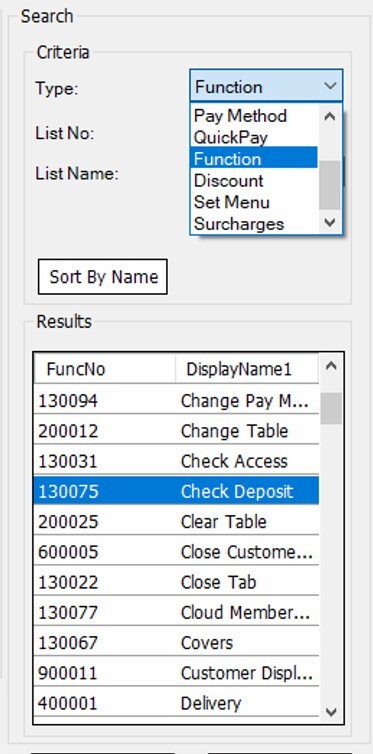
Redeeming Check Deposits is a Payment method, and to use this Payment in Front Office, Select ‘Pay Method’ from the Type drop down, and select ‘Redeem Deposit’ to drag on to the screen.
Once both of these are on the Menu Design, we can head back to Front Office and start accepting Check Deposits.
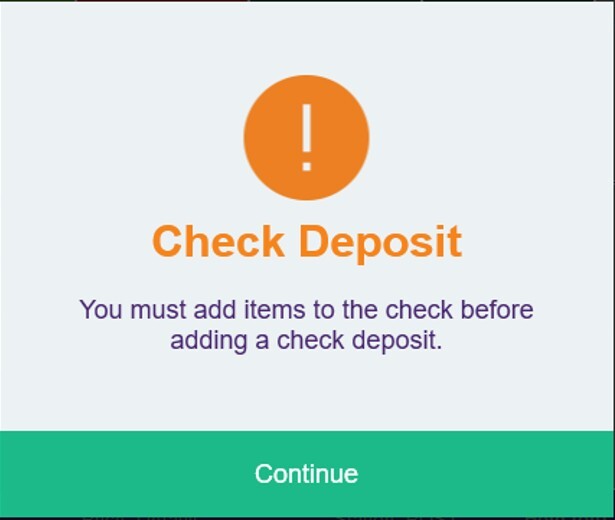
The first things to note about Check Deposits is that in order to accept a deposit, a Check must be active, meaning it either has an Item on the Check for a Table or over-the-counter Order, or be a Tab. Attempting to accept a Check Deposit without an active Check will produce the following error:
If the Check is active, using the ‘Check Deposit’ functionality will alter the colour of the number pad, indicating a Payment will not be a standard payment, rather a Check Deposit.
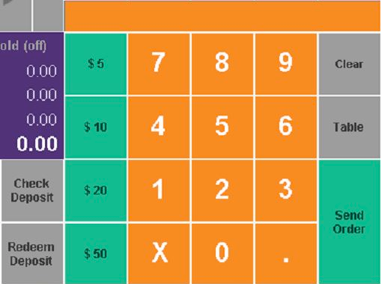
To accept a Check Deposit, enter the amount using the keypad, and select a Payment Type, this will accept the Check Deposit and it will be displayed in the Summary section. In this example, I’ve accepted a $200 Check Deposit against an open Tab.

At this point, you are able to report on Deposits, which have been received in the Cashier Report. These will be separate from your Payments, i.e. cash received will be reported separately from Cash Deposits.
Once the Check Deposit is received, the Tab/Table/Order can be saved and redeemed later.
When the time comes to redeem the Deposit, the first Payment taken against the transaction must be the redemption of the Deposit. Deposits cannot be partially redeemed; the entire value of the Deposit must be used on one transaction. If the Check Deposit is less than the value of the Check, a multi-payment will be processed and the Check will be partially paid\*. If the Check Deposit is more than the value of the Check, the system will prompt to either leave the remainder as a tip, or the remainder will be returned in Cash Change.
Deposits that have been redeemed appear in the Cashier Reports as a Payment Type.
\* A Check Discount cannot be applied once a partial Payment has been processed, which means that any Check Discounts must be applied before redeeming any Deposits.
*Any questions please call Impos Support on 1300 780 268.*
- [How to Connect to your Venue Remotely](https://knowledge.impos.com.au/how-to-connect-to-your-venue-remotely?hsLang=en-au#main-content)
- [How to Connect to your Venue Remotely](https://knowledge.impos.com.au/how-to-connect-to-your-venue-remotely?hsLang=en-au#how-to-connect-to-your-venue-remotely)
- [Impos Back Office and Stock](https://knowledge.impos.com.au/impos-back-office-and-stock?hsLang=en-au#main-content)
- [Stock](https://knowledge.impos.com.au/impos-back-office-and-stock?hsLang=en-au#stock)
- [Back Office](https://knowledge.impos.com.au/impos-back-office-and-stock?hsLang=en-au#back-office)
- [Impos Front Office](https://knowledge.impos.com.au/impos-front-office?hsLang=en-au#main-content)
- [Cashier Reports](https://knowledge.impos.com.au/impos-front-office?hsLang=en-au#cashier-reports)
- [Getting Started with Impos Front Office](https://knowledge.impos.com.au/impos-front-office?hsLang=en-au#getting-started-with-impos-front-office)
- [Order Information](https://knowledge.impos.com.au/impos-front-office?hsLang=en-au#order-information)
- [Table Service](https://knowledge.impos.com.au/impos-front-office?hsLang=en-au#table-service)
- [Storing Order information in Front Office](https://knowledge.impos.com.au/impos-front-office?hsLang=en-au#storing-order-information-in-front-office)
- [Taking Payment](https://knowledge.impos.com.au/impos-front-office?hsLang=en-au#taking-payment)
- [Web Reports](https://knowledge.impos.com.au/impos-front-office?hsLang=en-au#web-reports)
- [More Functions](https://knowledge.impos.com.au/impos-front-office?hsLang=en-au#more-functions)
- [Impos Analytics](https://knowledge.impos.com.au/impos-analytics?hsLang=en-au#main-content)
- [Impos Analytics](https://knowledge.impos.com.au/impos-analytics?hsLang=en-au#impos-analytics)
- [Integrations](https://knowledge.impos.com.au/integrations?hsLang=en-au#main-content)
- [Doshii](https://knowledge.impos.com.au/integrations?hsLang=en-au#doshii)
- [Kitchen & Inventory Management](https://knowledge.impos.com.au/integrations?hsLang=en-au#kitchen-inventory-management)
- [Reservations & Room Charge](https://knowledge.impos.com.au/integrations?hsLang=en-au#reservations-room-charge)
- [Deputy Rostering](https://knowledge.impos.com.au/integrations?hsLang=en-au#deputy-rostering)
- [Promotions & Membership](https://knowledge.impos.com.au/integrations?hsLang=en-au#promotions-membership)
- [Bump Screens](https://knowledge.impos.com.au/integrations?hsLang=en-au#bump-screens)
- [Accounting](https://knowledge.impos.com.au/integrations?hsLang=en-au#accounting)
- [EFTPOS](https://knowledge.impos.com.au/integrations?hsLang=en-au#eftpos)
- [Cinch](https://knowledge.impos.com.au/cinch?hsLang=en-au#main-content)
- [Cinch Web Publishing](https://knowledge.impos.com.au/cinch?hsLang=en-au#cinch-web-publishing)
- [Cinch Basics](https://knowledge.impos.com.au/cinch?hsLang=en-au#cinch-basics)
- [Kiosk](https://knowledge.impos.com.au/kiosk?hsLang=en-au#main-content)
- [Setting Up Kiosk](https://knowledge.impos.com.au/kiosk?hsLang=en-au#setting-up-kiosk)
- [Latest Updates](https://knowledge.impos.com.au/latest-updates?hsLang=en-au#main-content)
- [Release Notes](https://knowledge.impos.com.au/latest-updates?hsLang=en-au#release-notes)
- [Policy Updates](https://knowledge.impos.com.au/latest-updates?hsLang=en-au#policy-updates)
- [FAQs](https://knowledge.impos.com.au/faqs?hsLang=en-au#main-content)
- [FAQs - Front Office](https://knowledge.impos.com.au/faqs?hsLang=en-au#faqs-front-office)
- [FAQs - Back Office](https://knowledge.impos.com.au/faqs?hsLang=en-au#faqs-back-office)
- [FAQs - Hardware eg Printers, Terminals, Tablets, Networking](https://knowledge.impos.com.au/faqs?hsLang=en-au#faqs-hardware-eg-printers-terminals-tablets-networking)
- [FAQs - Onboarding, Installation and Training](https://knowledge.impos.com.au/faqs?hsLang=en-au#faqs-onboarding-installation-and-training)
- [FAQs - Stock](https://knowledge.impos.com.au/faqs?hsLang=en-au#faqs-stock)
- [FAQs - Schools](https://knowledge.impos.com.au/faqs?hsLang=en-au#faqs-schools)
- [Troubleshooting](https://knowledge.impos.com.au/troubleshooting?hsLang=en-au)
[](https://impos.com.au/)
[mailto:email@email.com](mailto:email@email.com)
Copyright © 2026, Impos