---
title: Check and Payment Surcharges
description: Configure check and payment surcharges in Impos Back Office. Manage your POS menu, pricing, and system settings effectively.
---
[Skip to content](https://knowledge.impos.com.au/hc/en-us/articles/115000350048-check-and-payment-surcharges#main-content)
English - Australia
Show submenu for translations
[More support](https://knowledge.impos.com.au/kb-tickets/new?hsLang=en-au)
[](https://impos.com.au)
Open main navigation
Close main navigation
- English - Australia
Show submenu for translations
- [More support](https://knowledge.impos.com.au/kb-tickets/new)
- [visit impos.com.au](https://impos.com.au/)
[visit impos.com.au](https://impos.com.au/)
How can we help you?
- There are no suggestions because the search field is empty.
1. [Impos Knowledge Base](https://knowledge.impos.com.au/?hsLang=en-au)
2. [Impos Back Office and Stock](https://knowledge.impos.com.au/impos-back-office-and-stock?hsLang=en-au)
3. [Back Office](https://knowledge.impos.com.au/impos-back-office-and-stock?hsLang=en-au#back-office)
25 August 2026
# Check and Payment Surcharges
## Impos software allows you to create your own check surcharges, and create and maintain payment surcharges.
Check surcharges are most commonly used to increase the price of all items by a percentage amount on a particular station, whereas payment surcharges are used to recoup merchant fees charged by EFTPOS providers, and are attached to specific payment types.
First we’ll cover the setup of both types of surcharges, then discuss their respective applications.
To set up a surcharge, select *surcharge* from the *menu details* dropdown in Impos back office.
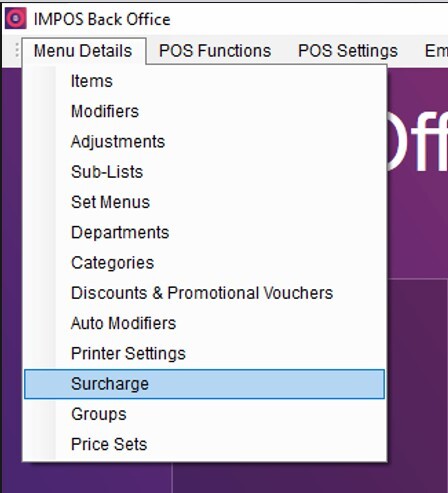
In order to create your first surcharge, select the *add surcharge* tab. The surcharge name will then appear on the screen.
The *value* is the amount (percentage) that will be added to the transaction.
*Surcharge type* indicates whether it is a payment surcharge or a check surcharge.
The *surcharge level* is applied differently depending on the type of surcharge. For check surcharges, it is the user authority to apply the check surcharge. For payments, user authority is required to remove the surcharge if it is set to automatically apply.
*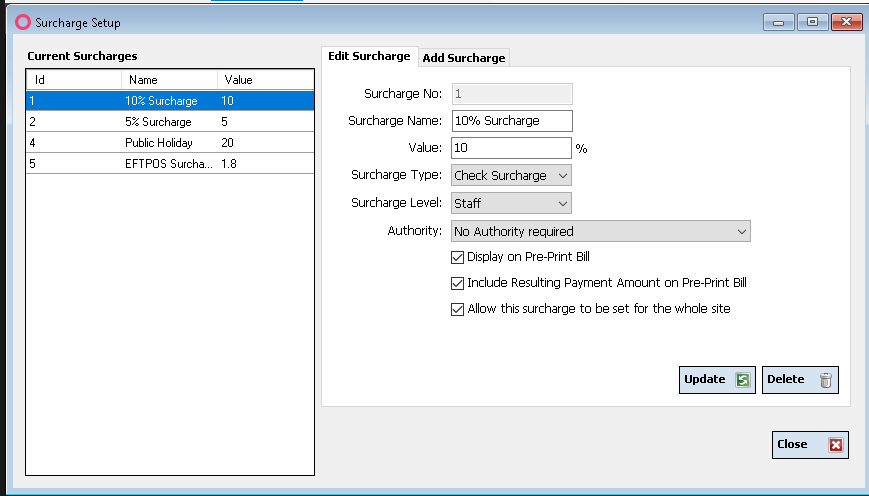* Now, we’re going to create both a Check surcharge, and a Payment Surcharge.
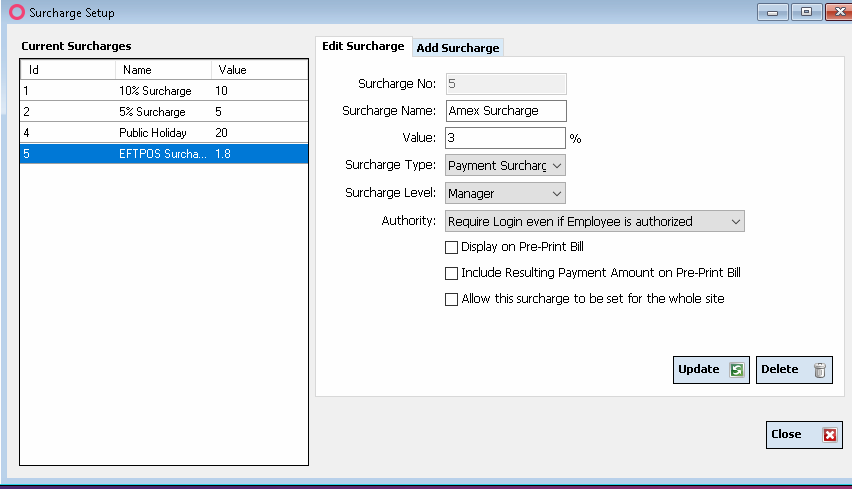
The Check Surcharge will be a ‘Sunday Surcharge’ of 10%, applied by managers. The Payment Surcharge will be an ‘Amex Surcharge’ of 3%, which can only be removed by managers.
An example screenshot of the Payment Surcharge is below.
**
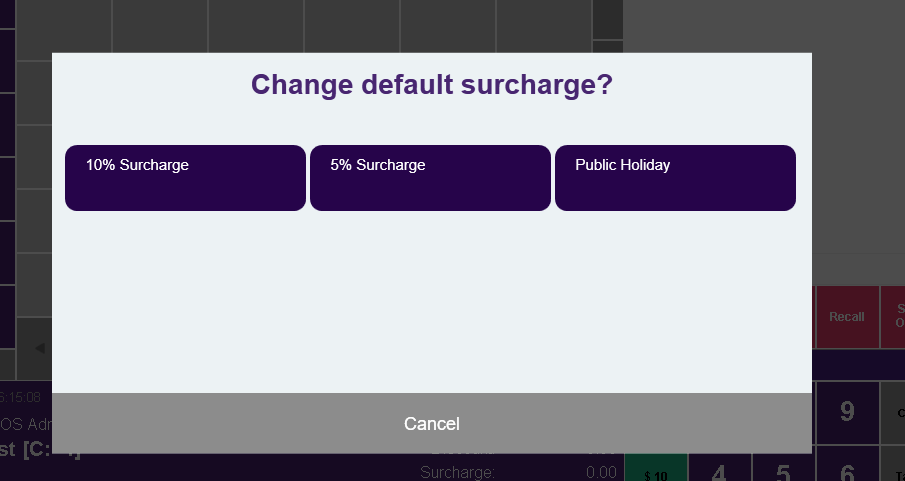
Once the Check Surcharge has been saved, it is ready to be applied at the Front Office level, and can be dragged on the screen through the Menu Designer or via the Surcharge toggle in the summary bar. Using the Surcharge toggle will allow you to select which Surcharge is applied via a selection box.
**
The same toggle is used to turn the Surcharge off. You are also able to turn the Surcharge off for a single transaction by using the ‘Void Surcharge’ function.
Payment Surcharges must be attached to Payment Types. In order to attach them, select ‘Payment Methods’ from the ‘Payment Setup’ drop down in Back Office.
*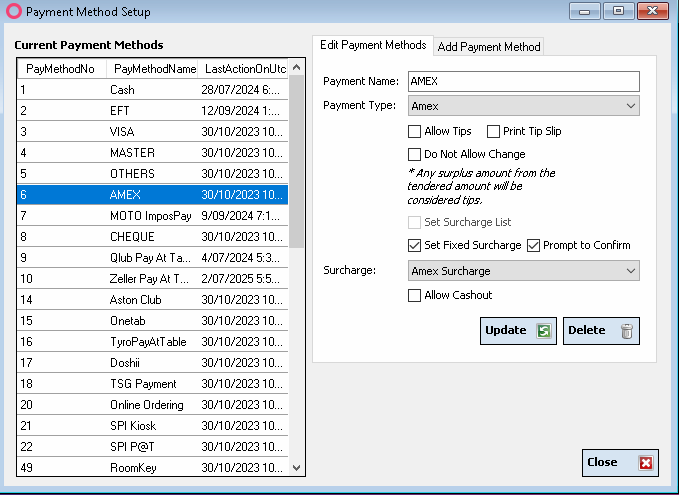*
In the Payment Method Setup screen, each payment method has the ability to add a Surcharge in two ways; one is fixed and the other is flexible and can be selected from a list.
In order to bring up a list, select the option to ‘Show Surcharge List’ and choose ‘Update’. Using this option will present the list of All Payment Surcharges active in the system to the user at the time of payment. It is not mandatory to add a Surcharge at this time.
In order to create a fixed Surcharge, select the option ‘Set Fixed Surcharge’, which will enable the selection of one Surcharge to be applied by default to this Payment Type.
*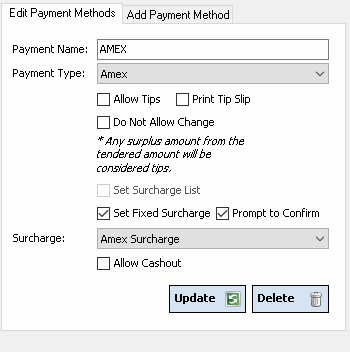*
Select the Surcharge, and press ‘Update’. The Front Office system will now apply the Surcharge at the time of payment.
To walk through the process flow for your employees, head to Front Office and you can begin to process payment. By selecting the AMEX payment method, as we have applied a fixed Surcharge, we are prompted to confirm the addition of the Surcharge.
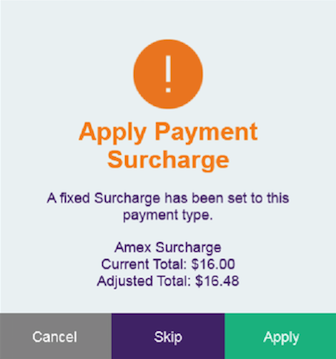
‘Cancel’ will return to the Check Screen and no payment will be processed.
‘Skip’ will allow the user to enter the relevant authority to process payment without adding the Surcharge.
‘Apply’ will process the payment once the Payment Surcharge has been applied.
The Payment Surcharge will appear in your Cashier Report as separate Payment Types.
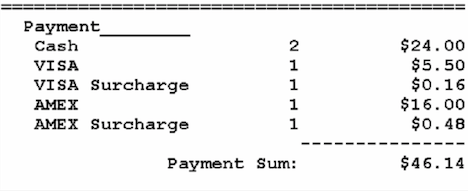
When creating surcharges, it's best to first read the ACCC guidelines on surcharges that can be passed on to the customer
[https://www.accc.gov.au/consumers/prices-surcharges-receipts/credit-debit-prepaid-card-surcharges](https://www.accc.gov.au/consumers/prices-surcharges-receipts/credit-debit-prepaid-card-surcharges)
If you have any questions please call Impos Support on 1300 780 268.
- [How to Connect to your Venue Remotely](https://knowledge.impos.com.au/how-to-connect-to-your-venue-remotely?hsLang=en-au#main-content)
- [How to Connect to your Venue Remotely](https://knowledge.impos.com.au/how-to-connect-to-your-venue-remotely?hsLang=en-au#how-to-connect-to-your-venue-remotely)
- [Impos Back Office and Stock](https://knowledge.impos.com.au/impos-back-office-and-stock?hsLang=en-au#main-content)
- [Stock](https://knowledge.impos.com.au/impos-back-office-and-stock?hsLang=en-au#stock)
- [Back Office](https://knowledge.impos.com.au/impos-back-office-and-stock?hsLang=en-au#back-office)
- [Impos Front Office](https://knowledge.impos.com.au/impos-front-office?hsLang=en-au#main-content)
- [Cashier Reports](https://knowledge.impos.com.au/impos-front-office?hsLang=en-au#cashier-reports)
- [Getting Started with Impos Front Office](https://knowledge.impos.com.au/impos-front-office?hsLang=en-au#getting-started-with-impos-front-office)
- [Order Information](https://knowledge.impos.com.au/impos-front-office?hsLang=en-au#order-information)
- [Table Service](https://knowledge.impos.com.au/impos-front-office?hsLang=en-au#table-service)
- [Storing Order information in Front Office](https://knowledge.impos.com.au/impos-front-office?hsLang=en-au#storing-order-information-in-front-office)
- [Taking Payment](https://knowledge.impos.com.au/impos-front-office?hsLang=en-au#taking-payment)
- [Web Reports](https://knowledge.impos.com.au/impos-front-office?hsLang=en-au#web-reports)
- [More Functions](https://knowledge.impos.com.au/impos-front-office?hsLang=en-au#more-functions)
- [Impos Analytics](https://knowledge.impos.com.au/impos-analytics?hsLang=en-au#main-content)
- [Impos Analytics](https://knowledge.impos.com.au/impos-analytics?hsLang=en-au#impos-analytics)
- [Integrations](https://knowledge.impos.com.au/integrations?hsLang=en-au#main-content)
- [Doshii](https://knowledge.impos.com.au/integrations?hsLang=en-au#doshii)
- [Kitchen & Inventory Management](https://knowledge.impos.com.au/integrations?hsLang=en-au#kitchen-inventory-management)
- [Reservations & Room Charge](https://knowledge.impos.com.au/integrations?hsLang=en-au#reservations-room-charge)
- [Deputy Rostering](https://knowledge.impos.com.au/integrations?hsLang=en-au#deputy-rostering)
- [Promotions & Membership](https://knowledge.impos.com.au/integrations?hsLang=en-au#promotions-membership)
- [Bump Screens](https://knowledge.impos.com.au/integrations?hsLang=en-au#bump-screens)
- [Accounting](https://knowledge.impos.com.au/integrations?hsLang=en-au#accounting)
- [EFTPOS](https://knowledge.impos.com.au/integrations?hsLang=en-au#eftpos)
- [Cinch](https://knowledge.impos.com.au/cinch?hsLang=en-au#main-content)
- [Cinch Web Publishing](https://knowledge.impos.com.au/cinch?hsLang=en-au#cinch-web-publishing)
- [Cinch Basics](https://knowledge.impos.com.au/cinch?hsLang=en-au#cinch-basics)
- [Kiosk](https://knowledge.impos.com.au/kiosk?hsLang=en-au#main-content)
- [Setting Up Kiosk](https://knowledge.impos.com.au/kiosk?hsLang=en-au#setting-up-kiosk)
- [Latest Updates](https://knowledge.impos.com.au/latest-updates?hsLang=en-au#main-content)
- [Release Notes](https://knowledge.impos.com.au/latest-updates?hsLang=en-au#release-notes)
- [Policy Updates](https://knowledge.impos.com.au/latest-updates?hsLang=en-au#policy-updates)
- [FAQs](https://knowledge.impos.com.au/faqs?hsLang=en-au#main-content)
- [FAQs - Front Office](https://knowledge.impos.com.au/faqs?hsLang=en-au#faqs-front-office)
- [FAQs - Back Office](https://knowledge.impos.com.au/faqs?hsLang=en-au#faqs-back-office)
- [FAQs - Hardware eg Printers, Terminals, Tablets, Networking](https://knowledge.impos.com.au/faqs?hsLang=en-au#faqs-hardware-eg-printers-terminals-tablets-networking)
- [FAQs - Onboarding, Installation and Training](https://knowledge.impos.com.au/faqs?hsLang=en-au#faqs-onboarding-installation-and-training)
- [FAQs - Stock](https://knowledge.impos.com.au/faqs?hsLang=en-au#faqs-stock)
- [FAQs - Schools](https://knowledge.impos.com.au/faqs?hsLang=en-au#faqs-schools)
- [Troubleshooting](https://knowledge.impos.com.au/troubleshooting?hsLang=en-au)
[](https://impos.com.au/)
[mailto:email@email.com](mailto:email@email.com)
Copyright © 2026, Impos