
Creating Items
- Navigate to BOH and create the item
- Update Kisosk Picture
- Update Description box
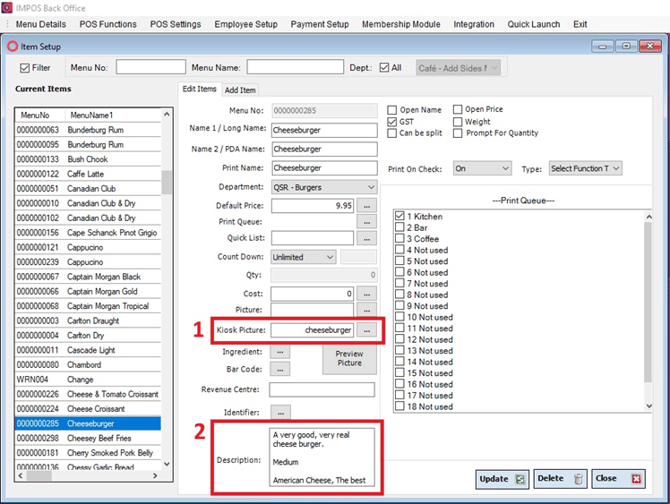
After creating the item, click the three dots next to the "Kiosk Picture" field.
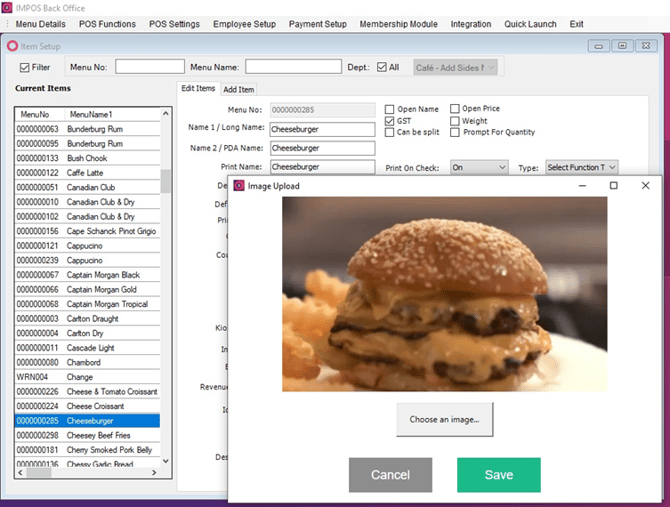
- Select and upload an image that will appear in the Kiosk Menu.
- The image should accurately represent the item to assist customers in identifying the product.
Update Description Box
- Add a description of the item under the “Description” section.
This will appear on the Kiosk Menu for customers to view item details such as ingredients, special instructions, or any other relevant information.
Setting Up Kiosk Menu List
Check Sub-List Setup:
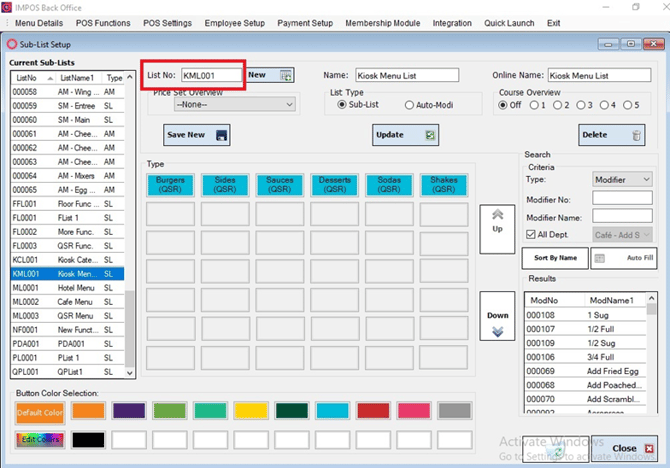
- Go to the Sub-List Setup section to verify if there is an available Kiosk Menu List.
- Typically, this is labeled as List No. KML001.
Creating KML001 (If Not Available):
- If the KML001 list does not exist, create it manually by:
- Clicking the “New” button.
- Adding KML001 as the list number.
- Save the new list.
Designing The Kiosk Menu
Select the Kiosk Menu Tab:
- In the “Menu Design” section, navigate to the “Kiosk Menu” tab.
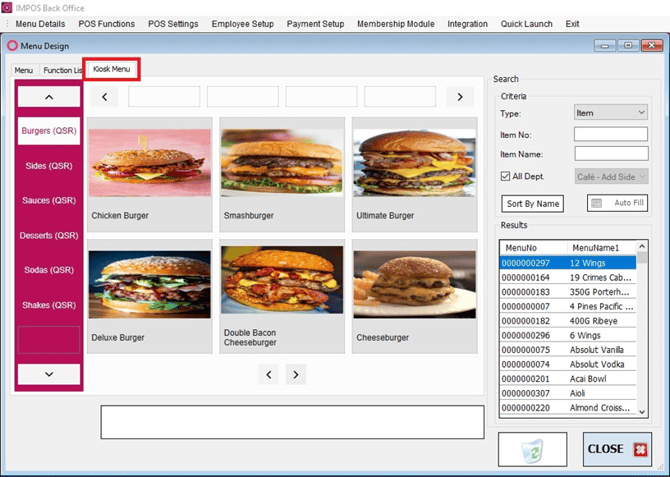
Designing the Kiosk Menu:
- Use the same principles of regular menu design.
- Add your desired Sublists from the left-hand bar.
- Select the Sublist you want to work with.
Drag and Drop Items:
- Drag and drop any items you want available on the Kiosk into a Menu Tile located in the center grid.