
In the admin dashboard, restaurants can monitor their performance by viewing and exporting reports from the reporting module. This section also provides insights and recommendations to help increase online orders and drive higher sales.
Dashboard
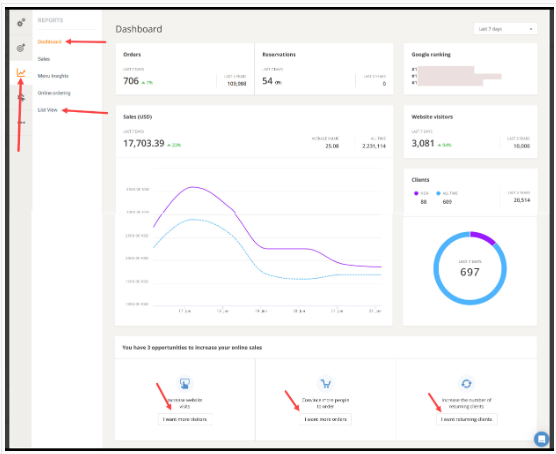
In the “Dashboard” section, restaurant owners can view a high-level overview of their venue’s performance, including the number of orders, table reservations (if enabled), sales, Google ranking, website traffic, and customer count. The time period can be adjusted using the filter in the top-right corner to analyse specific date ranges.
Below the dashboard summary, you’ll also find suggested opportunities to help increase online sales. Each recommendation can be clicked to view practical tips on how to improve performance and drive more orders.
Sales
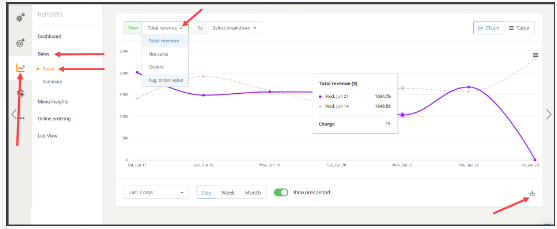
On the “Trend” page within the “Sales” section, restaurant owners can gain a deeper understanding of their sales performance. They can filter the data by total revenue, net sales (excluding taxes), number of orders, and average order value. The report also includes a breakdown of performance by order type.
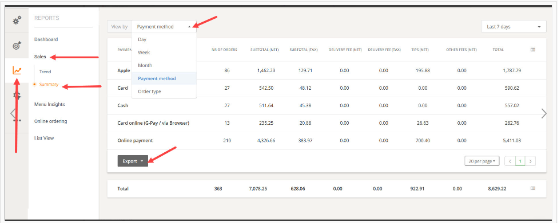
In the “Summary” section, restaurant owners can review overall order volume and analyse sales across different time periods, including daily, weekly, and monthly views. They can also break down performance by payment method and order type.
In addition, users can select a custom date range to view historical data and export reports in PDF, CSV, or Excel formats for further analysis or record-keeping.
Menu Insights
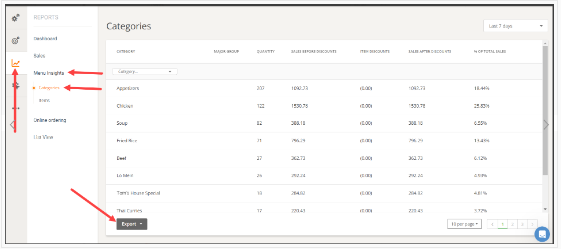
In this section, restaurant owners can view the quantity of menu items sold, the categories they belong to, any item-level discounts applied, and each item’s percentage contribution to total sales. It also shows sales after discounts, broken down by item type.
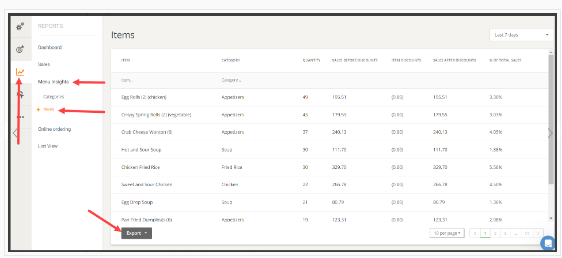
The quantity of menu items sold are displayed also per category, in the dedicated section:
Online Ordering
Website Funnel
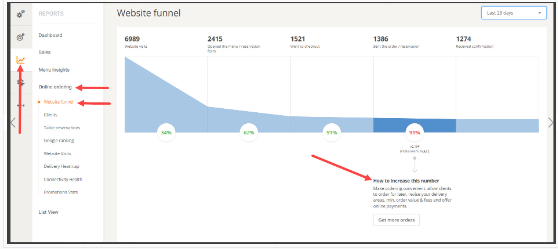
The funnel visualises the journey of website visitors from the moment they land on the site through to receiving order confirmation. It highlights how many visitors convert into customers, where drop-offs occur, and at which stage they happen.
By hovering over each section of the funnel (and the insights at the bottom), restaurants can view additional recommendations and actions they can take to improve conversion and turn more visitors into paying customers.
Clients
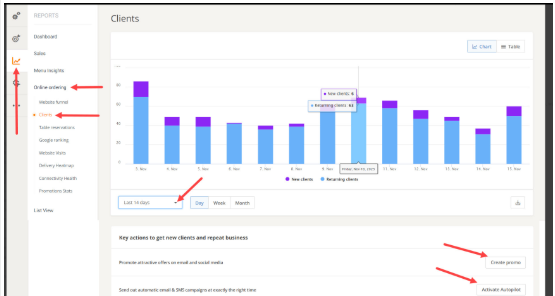
The next section looks at clients and shows the number of new and returning clients on the time period selected by the restaurant manager. This report can also be exported in PDF, PNG or CSV formats. To get new clients and repeat business, we suggest working with the available marketing tools in the system. Click on “Create promo” or “Activate Autopilot” to start one.
Table reservations
Under “Table reservations,” restaurant managers will see a chart/a table of how their table reservations have performed over time, according to the time period they select. They can also export the report as a PNG, PDF, or CSV.
If restaurants don’t have pre-ordering enabled for when people book a table, the account holder can do that from here by clicking on “Enable service.” This will encourage people to place a reservation.
Google ranking
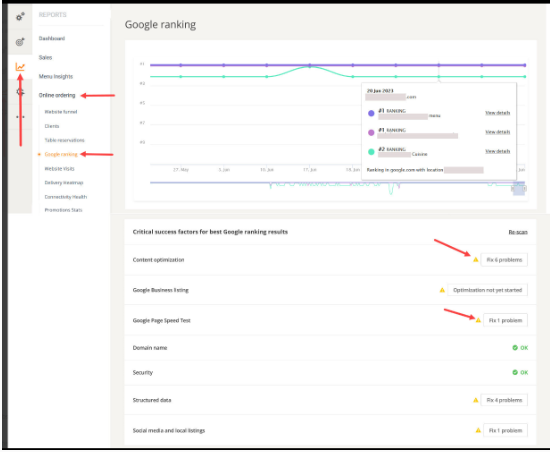
Moving on to the next section, restaurant managers can take a look at their Google ranking for important keywords that the restaurant is targeting. Here, a list of critical success factors is provided that help ranking better in Google. Click on the ones that are not performing as they should to learn how to fix the problem.
Website visits
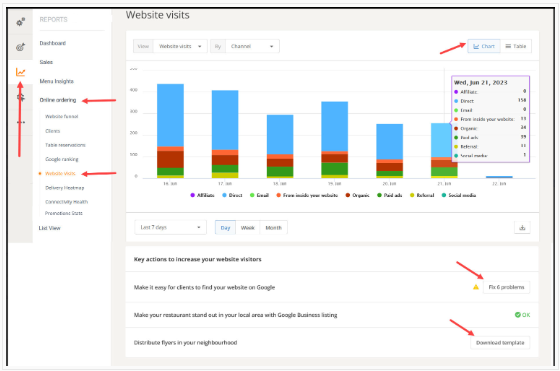
In this section, restaurant managers have a more detailed look at website visits, as well as a list of tips the restaurant can implement. They can look at all website visits or filter them by channel or number of sessions, and they can also view the report as a chart or as a table.
Delivery Heatmap (for restaurants with delivery service enabled)
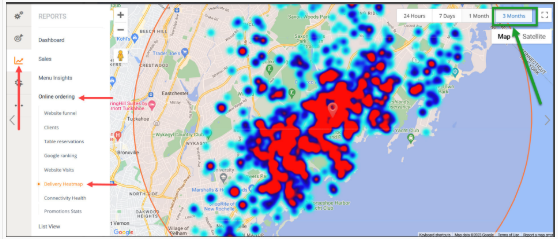
In this section restaurant managers will be able to see what are the delivery zones where they have made most deliveries and adjust their delivery settings or promotions accordingly:
Connectivity Health
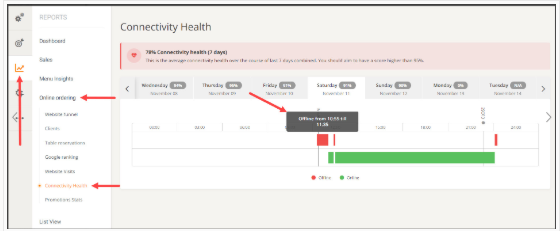
Under “Connectivity Health,” the restaurant manager can check the connectivity health of the restaurant’s order taking app. The score should be higher than 95% for it to be considered successful.
If there are connectivity issues, the account holder will see a connectivity alert. Click on the “Fix this” button to get more information on what to do to avoid this.
Promotion Stats
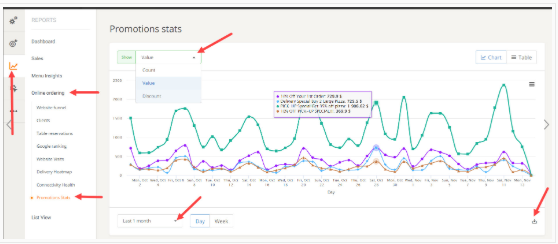
In the Promotion Stats section, restaurant owners can monitor the performance of their promo campaigns. They are able to view data by value, count and discount, to show data by various time intervals and to export it in a CSV or XLS format:
List View
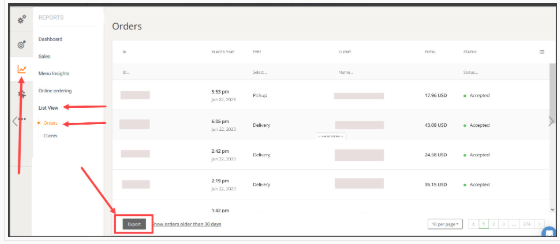
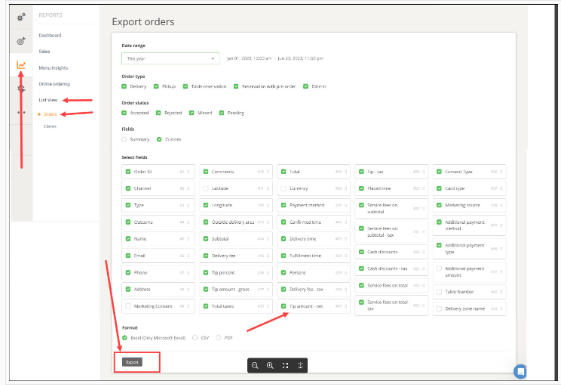
Finally, under “List View,” account holders can see a list of all orders, as well as clients. For orders, they can click on “Export all orders” to be taken to a page where they can filter them according to time, type, status, and a variety of custom fields. Add or remove parameters as needed for export.
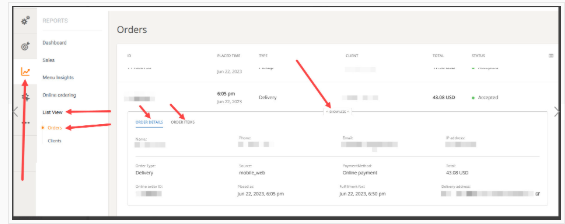
Clicking on “Show more”, at the bottom of an order line, allows account holders to see the details of that order and the list of items that were ordered:
The last type of report that can be exported is the “clients” one, where restaurant owners will get a list of all clients with their name, email address, phone number, total spent, total orders, and last order time.
